Requests
Bulk send
One form to a whole list in one go. Each person still gets their own request: their own link, prefill, reminders and callback.
Open Several people
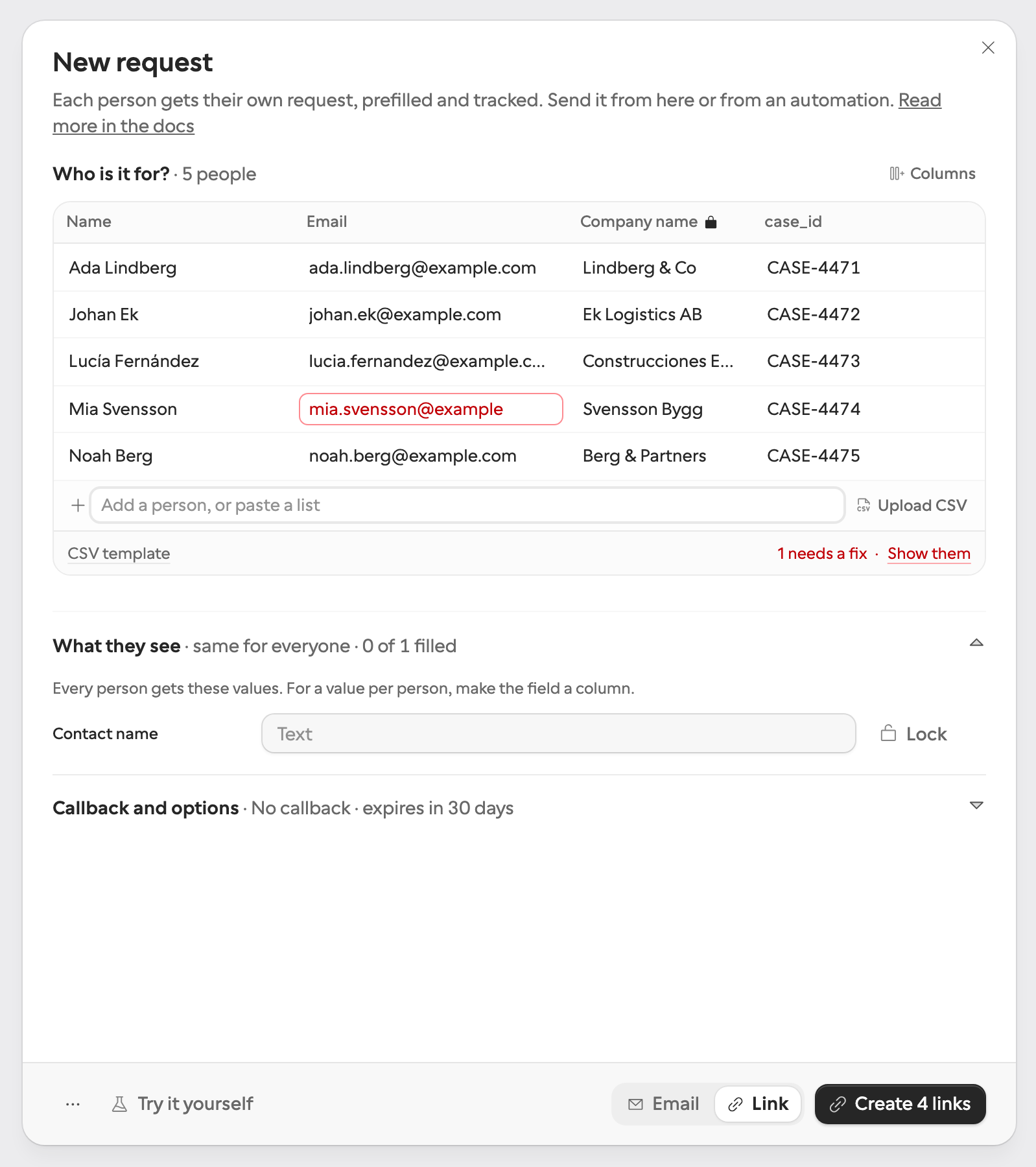
Open your published form, click New request and stay on the Manual tab. Next to Who is it for?, switch from One person to Several people. The sheet widens to make room for a table. Everything else you set (delivery, prefill, locks, options) stays as it was, so you can switch back and forth.
Add people
One input row takes every source. Use whichever fits the list you have, and mix them freely:
| Source | How |
|---|---|
| Type | Type a name and an email address, then press Enter. A bare address works too. |
| Paste | Paste a list, one person per line: Ada Lovelace |
| Upload CSV | Pick a CSV whose first row names the columns: email (required), name, and any of the form's field keys. Download the template from the table footer to get exactly those headers. |
| HubSpot | With a HubSpot integration on the form, search contacts by name or email, tick the ones you want and click Add. Contacts already in the table show as Added. |
A CSV column named after a field key fills that field for each person: a visible question’s key prefills it, a hidden field’s key fills
its context. A choice question takes the option’s key or its label, a switch takes true or false, and a column
the form has no field for is ignored and named under the table, so nothing disappears silently. Comma, semicolon and tab separated files
all work, and so do quoted values.
A HubSpot contact is read through the form’s existing mapping: every field mapped to prefill fills that contact’s row, and the answers update the same contact when they come back. A contact without an email address is still added; its row asks you for one.
Columns and Same for everyone
Each of the form’s fields is either a column, with a value per person, or Same for everyone, with one value for the whole list. A field becomes a column on its own when a CSV or HubSpot brings values for it. Columns in the table footer adds a field as a column, moves one back to Same for everyone, and locks it.
Same for everyone works like Prefill answers for one person: fill a value, and Lock it if nobody should change it. A lock applies to every request of the send, column or not, so a locked column needs a value in every row. Hidden fields that are not columns are shared the same way.
Rows that need a fix
The table checks every row as you go and outlines a bad cell in red, with the reason when you hover it. A row with a red cell is held back, and the footer says how many: Send counts only the rows that can go, and Show them lists just the rows to fix. Every cell is editable in place.
| Red cell | Why |
|---|---|
| No address, an address that is not one, or a second row for an address already in the list. | |
| A number column | A value that is not a number. |
| A choice column | A value that is neither an option's key nor its label. |
| A locked column | An empty cell: the person could never fill it in. |
| Name | A HubSpot contact that no longer exists, or could not be read. |
Send
- 1
Pick the delivery
Email an invitation emails every person their own link and reminds them while the request is open. Just give me a link emails nobody and hands the links to you.
- 2
Click Send
The button names the count, such as Send 20 invitations or Create 20 links, and shows its progress while the requests are created.
- 3
Read the receipt
The receipt says how many went out. Download links saves every link as a CSV with the email, name and link of each person, and Open in Requests shows the send.
The people a send reached leave the table. Anyone it could not reach stays, with the reason: on their row when it was about them, or in the receipt when it stopped the send, such as the monthly allowance running out. Columns, shared values, locks, delivery and options stay too, so the next list goes out the same way.
Try it yourself makes a test request from the first person who can be sent, with the shared values, so you see what they will get before anyone does.
In Requests
The requests of one send are ordinary requests: each has its own page, reminders and callback, and you can remind, cancel or delete one without touching the others. In the Requests list they sit under a header that says how many people the send reached and for which form, when and by whom it went out, how many came from HubSpot, when it expires and where they stand. Click the header, or pick the send under Sent together in Filter, to see only that send.
Limits
| Limit | What happens |
|---|---|
| 500 people per send | The table stops adding people at 500 and says so. |
| Monthly allowance | Each request spends one unit, like any request. When the allowance runs out partway, the send stops there and the rest stay in the table. |
| Invitations per hour | Formstep emails at most 200 invitations an hour per account, 30 in its first 7 days. A larger send emails as far as it can; the rest stay in the table to send later, or as links. |
| Free | Free invitations go only to your own address, so on Free a send to several people creates links. Upgrade to Pro to email them. |
From an automation
The API and the MCP server create one request per call. To send to a list from a workflow, call requests.create once per
person, with an idempotency key per person so a retried run sends nobody twice.