Requests
Field keys
A field key is the developer-facing name of one field in one form — company_name, contacts. It is how an automation prefills a field, locks it, or reads the answer back, and it survives retitling and duplicating.
Why they exist
Without field keys, an automation has to address your questions by internal ids that mean nothing to anyone — and a webhook payload arrives full of them. With field keys, both sides read the same way:
{ "company_name": "Acme", "employees": 120, "contacts": [{ "name": "Ada" }] }Field keys are used in two places: prefill, context, and readonly when creating a request; and the
answers and display maps in every callback and every webhook payload.
Where to find them
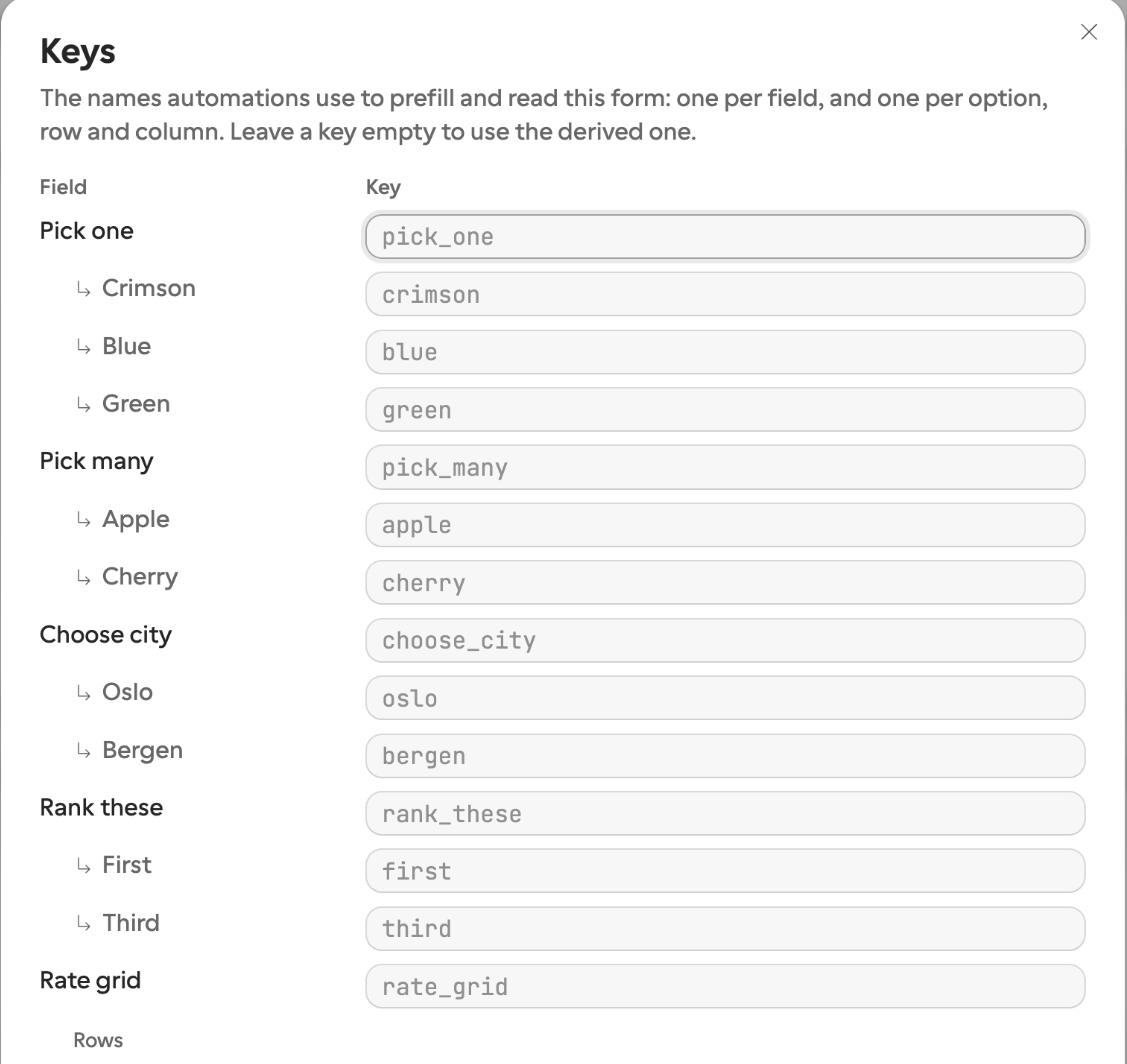
Every key the form publishes lives in one place, the Keys table: each field, and under a choice question each option,
under a matrix each row and column. It ends with a preview of the answers object your callback will carry, with your keys in
it.
- 1
Open it
Click the key icon in the editor toolbar (or Keys in the toolbar's overflow menu on a narrow window). The table opens in a side sheet over the whole form.
- 2
Read the placeholder
When an input is empty, its placeholder shows the key the field actually answers to — the key it was published under if the form is live, otherwise the key derived from its current title or label. Type to override it; clear the input to go back.
Each option’s hint row — the grey line under the option you are editing — ends with its key as a chip. Click the chip to edit the key in place, press Enter or Escape when done. A matrix shows the chip for the row or column whose label you are editing. A chip turns amber when the form is published and the key you typed would move the one automations already use.
The same table appears read-only where you wire an integration: under the webhook’s field mapping, and under the request snippets in the
Share sheet’s Requests card. You can also read every key at once with fields.list.
How a key is derived
You do not have to set anything. Until you edit it, a key is derived from the question’s title: accents are folded and letters such as ø, æ and ß become o, ae and ss, everything is lowercased, each run of anything that is not a letter or digit becomes a single underscore, leading and trailing underscores are dropped, and the result is cut to 64 characters.
| Question title | Derived key |
|---|---|
| Company name | company_name |
| What is your VAT number? | what_is_your_vat_number |
| Prénom | prenom |
| Søknad om støtte | soknad_om_stotte |
| الاسم الكامل | field_3 — no Latin letters or digits, so it falls back to its position in the form |
A title written only in a non-Latin script, such as Arabic, Hebrew, Cyrillic, Greek, Chinese or Japanese, has nothing to fold, so its key
is field_ plus its position, and an option’s is option_ plus its position. These keys are as stable as any other
once published, but they say nothing about the question. When an automation reads the answers, set a readable key yourself in the Keys
table.
If two fields would end up with the same key, formbase breaks the tie in document order by appending _2, _3, and
so on. A key you set yourself always wins its claim, and the derived one yields.
Setting your own key
Type a name in the Field key input to override the derived one. Clearing the input goes back to the derived key. Allowed characters are
letters, digits, _, . and -, up to 64 characters — anything else is refused with
“Use only letters, numbers and _ . - (max 64 characters).” Spaces are turned into underscores as you type, so “contact name”
becomes contact_name.
Keys are case-sensitive and must be unique within one form. Reusing one already taken by another question, repeating group, hidden field, or calculated field is refused with “Another field already uses this key.”
Keys freeze at first publish
Renaming a published key breaks automations
On a published form, the Field key input warns you that the form is published and automations using the current key will break. Nothing stops you, but every workflow that prefills or reads that key stops matching the moment you publish the change. Update the automation in the same sitting. Publish warns you again before the change goes live.
The first time you publish, every field’s key is written into that published version. Every later publish carries the same keys forward, which means:
Retitling never moves a key. Rename “Company name” to “Legal entity name” and the key stays
company_name. Your automations keep working; only the words on the page change.Changing a question’s type never moves a key. Turning a text question into a dropdown keeps its key — though the value shape your automation must send changes with it.
Moving a question never moves its key. Position only matters for the positional fallback on a field that has no usable title.
Duplicating a block gives the copy a new key. A key you set yourself is copied and re-keyed to the next free
_2; derived keys are made unique at publish.Forms built before field keys existed get theirs at their next publish.
Publishing is also where key collisions are caught, and both of them stop the publish rather than silently renaming a field:
Two fields claiming one key — Field key “…” is used by more than one field.
A key you typed onto one field that another field already published —
Field key “…” is already published on “…”. Giving it to “…” would rename that field’s key to “…_2” and break automations using “…”.
Free the key on one of the two and publish again.
Both show up beside the Publish button with every other pre-flight finding — see Publish checks.
When a published key is about to disappear
A key belongs to the field it was published on, not to its title. So there are two ways to lose one without meaning to: type a different key on a published field, or delete a question and add a new one in its place. The new question is a new field — it gets a fresh key derived from its own title, and the old key is gone.
Nothing fails on formbase’s side when that happens. The webhook still fires and the callback still arrives, only without that answer, and
requests.create starts refusing the old key with UNKNOWN_FIELD_KEY. So publish checks for it first. When a key
the live version publishes would not exist in the next one, the publish dialog and the issue indicator beside the Publish button show a
warning:
Field key "company_name" will no longer exist after this publish. Integrations and requests that use it will stop receiving that answer. A new field "Company" publishes as "company". Set its field key to "company_name" to keep them working.To keep your automations working, open the Keys table, find the field the warning names, and type the old key. The warning clears and the key carries on as if nothing happened.
If you removed the field on purpose, publish anyway — it is a warning, not an error — and update the automations that read the key.
The warning names a field only when the choice is obvious: the field whose key you retyped, or the single new field standing where a single deleted one was. Otherwise it names just the key.
Deleting a repeating group warns for the group’s key and for the key of every field inside it. Publishing through the MCP server’s
form_publishreturns the same messages inwarnings.Option, row and column keys get the same treatment: delete an option or retype its key on a published form and publish warns Option key “pro” of “Plan” will no longer exist after this publish, naming the key the option publishes as now when it still exists. The publish dialog lists every key change, at both levels, under Keys changing in this publish.
Repeating groups and hidden fields
A repeating group has its own key, and so does each field inside it. Automations address the group as a whole and nest the members:
{ "contacts": [{ "name": "Ada", "email": "ada@acme.com" }, { "name": "Grace", "email": "grace@acme.com" }] }A field inside a group is only reachable through its group — there is no top-level name here, only
contacts[0].name. Rename the group’s key and the whole array moves; rename one member’s key and only that name inside each
object changes.
A hidden field’s parameter name is its field key. That is the key you put in
context when creating a request, and the same name you would use in a URL parameter on a public link.
A calculated field’s name is its field key, and it shares the form’s one set of keys with
everything else. It is read-only: the form works out its value, so you can never send one — fields.list lists it with
calculated: true and requests.create refuses it in prefill and context. You do read it
back: it arrives in answers under its name (answers.total). Renaming a published calculated field renames its
key, with the same publish warning as any other field.
Option keys: the choices inside a question
The parts of a question that an answer names get keys too. Every option of a radio, select, checkbox, picture choice or ranking question, and every row and column of a matrix, has an option key: derived from its label the same way a field key is derived from a title, editable, and frozen at publish. So an answer reads as a name on both sides:
{ "plan": "pro", "interests": ["billing", "api"], "satisfaction": { "delivery_speed": "very_good" } }A workflow branches on answers.plan == “pro” whatever language the respondent answered in, and a request prefills a choice
with { "plan": "pro" }. The keys are listed by fields.list under each field’s options, or a
matrix’s rows and columns, and edited in the Keys table or on the option’s chip. Each
question’s options are their own namespace, so two questions may both have a yes, and a matrix row and column may share a
key. Two options of one question that would derive the same key are told apart with _2, like fields.
The decision question is an ordinary radio whose three options carry the keys
approve, decline and changes; that is what makes a request’s outcome a closed set.