Submissions & Analytics
Submission inbox
Every form has three submission views: an aggregated summary, a table of individual responses, and an analytics dashboard. Together they show you exactly how your form is performing.
Getting there
- 1
Go to your dashboard
Open formbase and pick the workspace that owns the form.
- 2
Pick a form
Click the form card to open the form editor.
- 3
Click Submissions
In the header toolbar, click "Submissions" to open the submissions area.
The three views
Every form’s submissions area has three tabs. Switch between them with the header buttons, or press 1, 2, or 3 for Summary, Submissions, and Analytics respectively (the shortcuts are ignored while you’re typing in a field).
Summary — aggregated responses
The Summary tab combines all responses into one overview. Each question gets its own card showing how many people answered, what they chose, and where they dropped off. Great for spotting patterns without reading every response. See Aggregated summary for details.
Submissions — individual responses
The Submissions tab lists one row per response. Search, filter, sort, and click any row to see the full detail. Export as CSV or Excel, or download individual PDFs.
Analytics — charts and metrics
The Analytics tab holds two blocks. The request block — a request funnel and five request metric cards — counts request rows and works on every plan. Everything below it counts visitor events, which only a Pro or Business workspace records. See Analytics & insights for details.
Submissions from a test request are stored but excluded from all three views, from the counts, and from exports.
The Submissions tab in detail
The rest of this page covers the Submissions tab — the table of individual responses.
Table columns
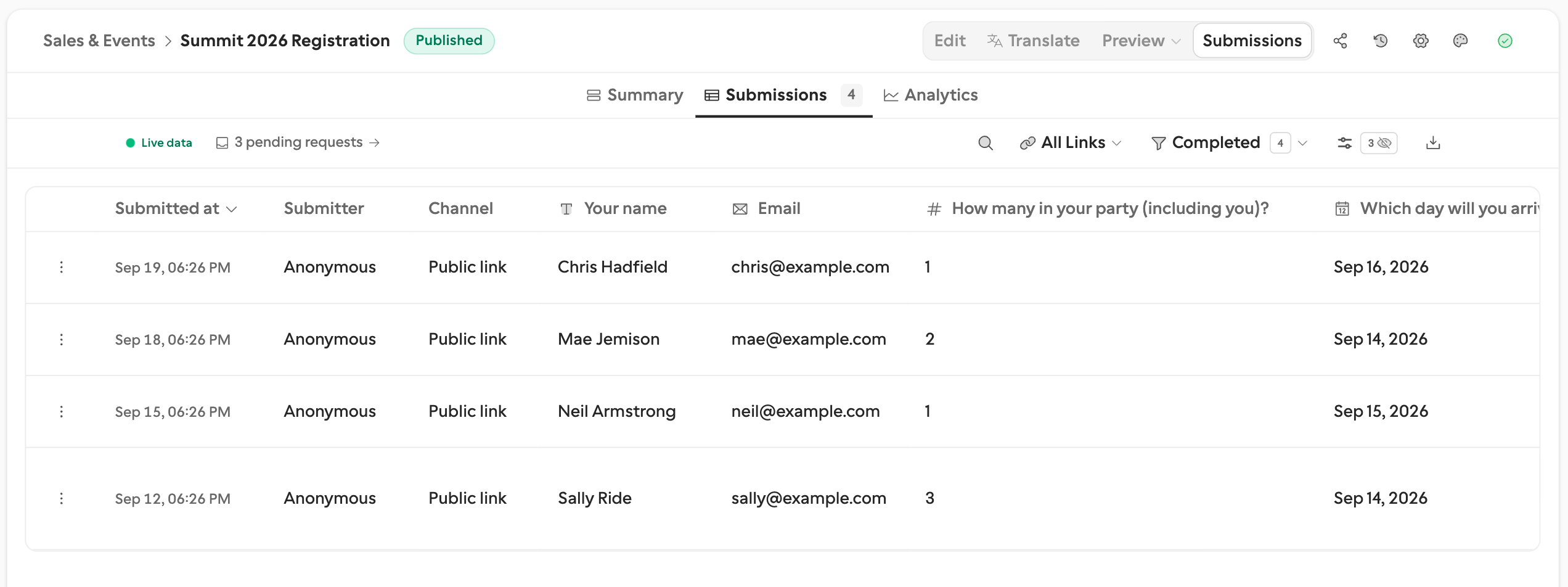
The table shows one row per submission. The first column is the row’s action menu (the ⋮ button). After it come:
- Submitted at — when the response came in. Blank for a partial.
- Submitter — the respondent’s name or email, or “Anonymous” when your form collects neither
- Channel — “Public link” or “Request”, so you can tell the two apart at a glance
- Answer columns — one per question, with the question type’s icon in the header
- Hidden fields and Calculated fields — also columns, labelled by kind in the header tooltip rather than by input type
Three more columns exist but are hidden until you switch them on in the question controls: Submission language, 4-digit PIN, and 6-digit PIN.
Raw URL query parameters (like utm_source) only become columns if you add a hidden field with that name. UTM parameters on their own feed analytics, but aren’t saved per response.
The row action menu
The ⋮ button on each row opens:
- View submission — the detail sheet
- Translate submission — see Translate a submission with AI
- Download PDF — in the language the respondent answered in
- Open request — only on rows a request collected; opens that request’s drawer
- Delete submission
Sorting
Click any column header to sort. The default order is newest first. Click again to reverse.
Reordering and hiding questions
Click the sliders icon in the toolbar to open the question controls. It has two groups, Metadata and Questions, and in both you can:
- Drag an entry up or down to reorder its column
- Toggle the eye icon to show or hide it
- Use Show All, Hide All, or Reset at the bottom
Your layout lives in the page URL, so you can bookmark or share a particular view.
Searching submissions
The search bar searches across all questions and answers. Type a name, email, keyword, or any fragment — matching rows appear instantly. Works with every question type: short text, long text, choice labels, emails, URLs, and more.
Filtering
Status filter
Use the status filter to narrow results. Each option carries its count:
- Completed — only fully submitted responses. The default, and the only option on Free.
- All — every submission, regardless of status. Pro and Business.
- Partial — only unfinished responses. Pro and Business. See Partial submissions.
Share link filter
When your form has two or more share links, a link filter appears. It counts both active and revoked links, since a revoked link keeps the responses it already collected. Tick any combination of links; tick “All Links” to go back to everything. See Share link analytics for more.
Pending requests
When the form has pending requests, the toolbar shows a muted “N pending requests” link. It opens the workspace Requests page filtered to this form. See Managing requests.
Viewing a submission
Choose View submission from a row’s action menu to open the full response in a side sheet, with every answer in form order.
Translate a submission with AI
Open a row’s action menu and choose Translate submission. formbase translates prose answers into your workspace notification email language; when that setting is empty, it uses your dashboard language. The result appears in both the table and the submission detail sheet.
After translation, the same action toggles between Show original and Show translation. Original answers remain unchanged and exports continue to use submitted values.
What gets translated
- Text, Long text, and selected option labels
- Picture-choice labels and text inside repeating-group instances
- Values that are already in the target language remain unchanged
Email addresses, URLs, phone numbers, numbers, dates, times, files, signatures, ratings, scale values, and payments are not translated. Names, codes, product names, and similar values are preserved when they are not prose.
Translation uses AI credits
Submission translation uses Claude Haiku and deducts credits from the same personal or shared workspace balance as AI chat. A cached translation is reused when source answers and target language have not changed. If no translatable text exists—or submission language already matches target—no translation is generated.
To change the target language, update Workspace settings → Notification email language. Stored translations are target-specific; translating after a language change creates or loads that language’s version.
Schedule appointments in the inbox
Confirmed Cal.com bookings appear under their Schedule appointment question. Table cells and detail views show event, date/time, attendee, and meeting details alongside ordinary answers. See Cal.com scheduling.
Repeating groups in the inbox
A repeating group lets a respondent add as many entries as they need — extra guests, line items, team members. Each entry holds the same member fields. The inbox keeps these tidy in both the table and the detail view.
In the table, a repeating group is a single column. It shows a count chip with the number of entries plus an open control — no raw values inline. Click the open control to see the entries in the submission detail.
When you open a submission, the group appears as its own section with a header and live entry count. Below it sits one numbered card per entry (1, 2, 3 …). Each card lists its member field → value pairs, and blank answers show an em dash “—”. Long lists paginate so a group with many entries stays readable.
For the combined-across-responses view, the aggregated summary shows a repeating group as a single card with a mini block for each member field.
Downloading a PDF
Choose Download PDF from a row’s action menu to get a formatted, printable document of that response. Partials have no PDF — the menu item stays disabled until the respondent submits. See Exporting submissions for all export options.
Deleting submissions
Choose Delete submission from a row’s action menu and confirm to permanently remove that submission.
Deletion is permanent
Once deleted, formbase removes that submission and all its associated data (files, signatures, payment details) forever. Export first if you need a record.
Bulk export
The download button above the table offers Download as CSV and Download as Excel, and exports whatever your current filters leave visible. See Exporting submissions for the format differences.
Real-time updates
New submissions appear automatically — no need to refresh. Need the numbers to hold still while you read them? Click the Live data toggle in the toolbar to pause, and click again to resume.
Pagination
The table loads 50 rows at a time and pages through them with the controls at the bottom.
Searching or sorting switches the table to a single scrolling list of whatever is loaded, with a line reading “Showing X of Y loaded · Z total” and a Load all button that pulls the rest in. The button is disabled while live data is paused.