Requests
Creating a request
Two API calls: ask the form what it can be told, then assign it to one person with the values you already know.
Start in the Share sheet
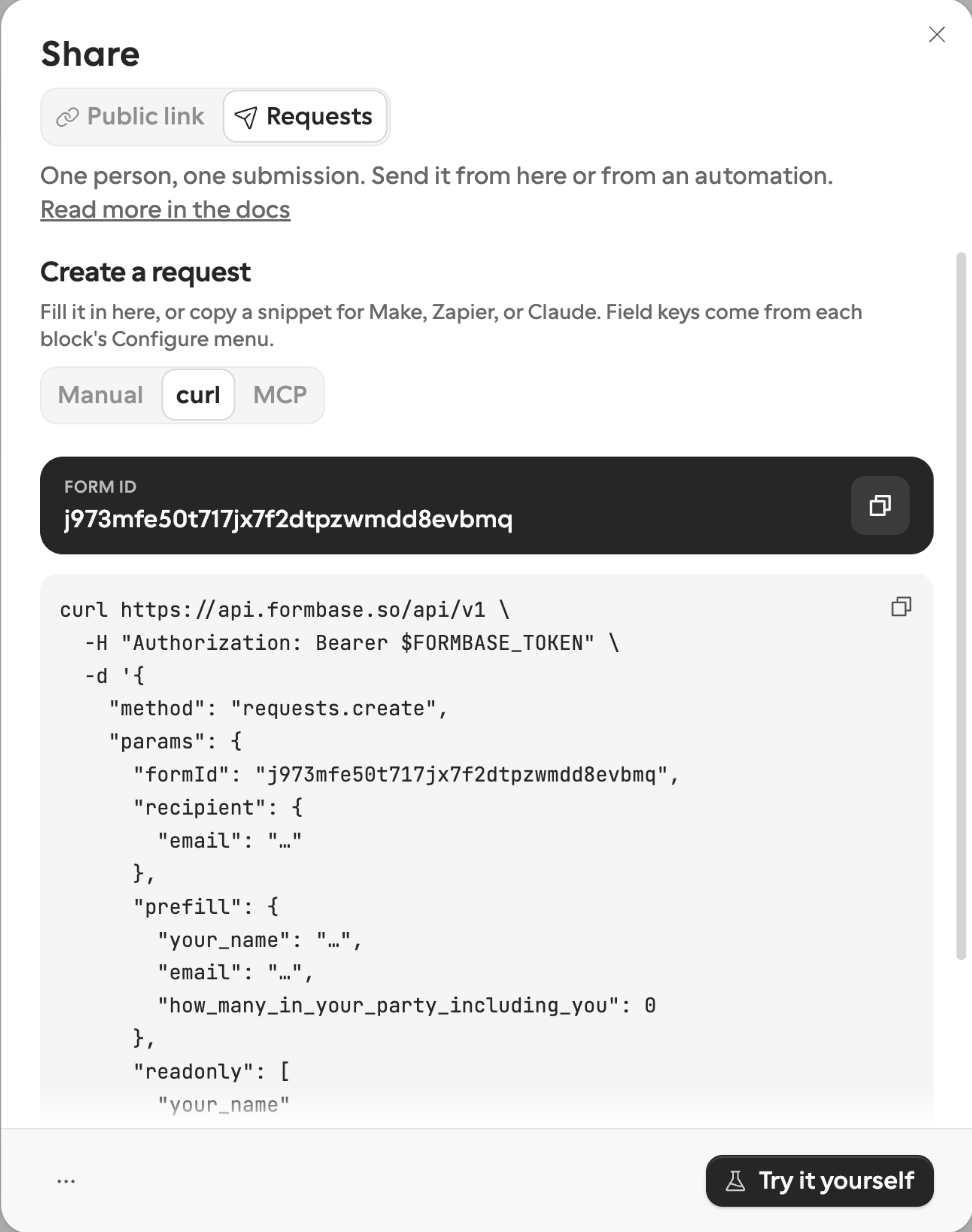
Open your published form, click Share, and pick the Requests tab. The card there gives you everything you need to make the first call:
The form id, with a copy button.
A curl snippet and an MCP prompt, both built from your form’s real field keys — so the example is already addressed to the fields this form actually has.
A Manual tab that creates one request by hand, and Try it yourself, which turns what you filled in there into a request in test mode and hands you its link.
A link through to the Requests page, filtered to this form.
Publish first
An unpublished form cannot be requested, and the snippets stay disabled until you publish. Field keys are frozen at first publish — that
is what lets your automation keep addressing company_name a year later. See Field keys.
Step 1 — Discover the fields
fields.list returns every field of the form’s current published version, with the key to address it by, the value shape it
takes, and which bucket it belongs in.
curl -X POST https://api.formbase.so/api/v1 \
  -H "Authorization: Bearer $FORMBASE_TOKEN" \
  -H "Content-Type: application/json" \
-d '{"method":"fields.list","params":{"formId":"j57..."}}'{
"ok": true,
"data": {
"published": true,
"items": [
{ "key": "company_name", "type": "text", "title": "Company", "required": true, "prefillable": true },
{
"key": "company_size", "type": "select", "title": "Company size", "required": false, "prefillable": true,
"options": [
{ "key": "1_50", "label": "1–50" },
{ "key": "51_200", "label": "51–200" }
]
},
{ "key": "case_id", "type": "hidden", "title": "Case", "required": false, "prefillable": false, "context": true },
{ "key": "total", "type": "number", "title": "Total", "required": false, "prefillable": false, "calculated": true },
{ "key": "signature", "type": "signature", "title": "Sign here", "required": true, "prefillable": false }
],
"hasMore": false
}
}context: truemarks a hidden field. Its value goes incontext, never inprefill; a hidden field’s key inprefillis rejected withUNKNOWN_FIELD_KEY.calculated: truemarks a calculated field. The form works out its value, so nothing can send one; you read it back under its key inanswers.prefillable: falsemarks a field nobody can supply a value for: file upload, signature, payment, appointment booking, and Documents blocks. The recipient fills in the questions themselves. Hidden fields and calculated fields also showprefillable: false: hidden fields takecontext, and calculated fields take nothing.optionslists the choices for a choice question. Send the option’s key, not its label; the label is there so you can match the choice you know to its key. A matrix lists itsrowsandcolumnsthe same way.Repeating groups come back as one entry with
type: “group”,repeating: true, and a list ofmembers.
Step 2 — Create the request
curl -X POST https://api.formbase.so/api/v1 \
  -H "Authorization: Bearer $FORMBASE_TOKEN" \
  -H "Content-Type: application/json" \
  -d '{"method":"requests.create","params":{
        "formId":"j57...",
        "recipient":{"email":"ada@acme.com","name":"Ada"},
        "context":{"case_id":"CASE-9"},
        "prefill":{"company_name":"Acme","company_size":"51_200"},
        "readonly":["company_name"],
        "delivery":"email",
        "externalId":"run-42",
        "callbackUrl":"https://automation.example/webhook/resume-abc",
"idempotencyKey":"run-42"}}'{
"ok": true,
"data": {
"id": "kd7...",
"status": "pending",
"url": "https://form.formbase.so/r/rq_...",
"deliveryStatus": "queued",
"expiresAt": 1794787200000,
"createdAt": 1789379200000,
"externalId": "run-42",
"deduplicated": false
}
}deliveryStatus is “queued” when formbase emails the invitation and “not_requested” when you deliver
the link yourself.
Prefill, locked fields, and context
Three different things can be attached to a request, and mixing them up is the most common first mistake.
| Goes in | The recipient… | Comes back in the callback | |
|---|---|---|---|
| Prefill | prefill | Sees it and can change it | Yes, as an answer |
| Locked field | prefill + readonly | Sees it, cannot change it | Yes, as an answer |
| Context | context | Cannot change it; sees it only where you mention it | Yes, in the request block and as an answer |
| Metadata | metadata | Never sees it, and neither does the form | Yes, in the request block |
Prefill
Initial answers for the visible questions, so the recipient reviews and corrects instead of typing from scratch. Everything you already know about them belongs here — the company name from your CRM, the amount from the invoice, last year’s answers.
Locked fields
List a prefilled key in readonly and the recipient sees the value but cannot change it. Use it for the facts they are
confirming rather than supplying — the contract number, the agreed price. Locking is per request: the form itself is untouched, and the
same field is freely editable on the next request.
Every locked key must also be prefilled, and a locked required field must be prefilled with something non-empty — otherwise the recipient would face a form they could never submit, and formbase rejects the call instead of creating that trap.
Context
Trusted values for the form’s hidden fields — a case number, a workflow run id, an amount. Context feeds variables, conditional logic, calculated fields, and email copy, comes back unchanged in the callback, and the recipient cannot alter it. That last part is the difference from seeding a hidden field through a URL on a public link, where anyone can edit the query string; request links ignore URL query parameters entirely. Context values must be a string, number, or boolean.
Context is not free-form: every key must be a hidden field on the form’s published version, and any other key is rejected with
UNKNOWN_FIELD_KEY. Bookkeeping that has no hidden field, like an execution id, belongs in metadata.
Hidden fields are not shown on the form, but a context value is not secret from the recipient. They see it wherever the form or the
invitation shows it: a mention in the form content or email copy, or a visible question that
uses that hidden field as its default value. In that last case the
recipient sees the context value pre-filled in that question and can edit the answer. The context value itself stays unchanged. A
prefill for that question’s own key wins over the default.
Metadata
Your own bookkeeping — an execution id, a CRM record id. It never reaches the form at all, so it cannot be piped into copy or read by logic; it just rides along and comes back in every callback and status read.
Value shapes
Send values in the shape the type from fields.list asks for. A wrong shape comes back as a validation error
naming the key, the expected type, and — for choice questions — the values that would have been accepted.
| Type | Send |
|---|---|
| text, email, phone, url, textarea | A string |
| number, rating, scale | A number |
| switch | true or false |
| date | "2026-03-04" |
| time | "09:30" or "09:30:00" |
| radio, select | The option key, not its label |
| checkbox, ranking, picture-choice | An array of option keys |
| matrix | An object of row key to column key: { "row_key": "column_key" } |
| group (repeating) | An array of instances, at most 100: [{ "member_key": value }, …] |
| file, signature, payment, schedule-appointment | Nothing — the recipient supplies these |
| any field with calculated: true | Nothing — the form works it out |
| documents | Nothing in prefill — use the documents option below |
Documents
A Documents block hands files to the respondent. Its authored files are the same for everyone and always stay; a request adds files for its one recipient below them — the customer’s own lease contract, an ID copy to check. Bytes never travel through the API call itself: upload first, then reference.
- 1
Reserve the upload
Call documents.create with formId, name (1–200 characters), contentType (PDF or image), the exact size in bytes, and optionally a sha256 of the file (64 hex characters). You get back an id and an uploadUrl that is valid for one hour.
- 2
Upload the bytes
PUT the file to uploadUrl with the same Content-Type. Nothing is verified yet.
- 3
Reference it on the request
Pass documents: [{ documentId, name? }] on requests.create. formbase checks the uploaded object (size, file signature, sha256 if you sent one) before the request is created, and the recipient sees the file in the block.
"documents": [
  { "documentId": "kn7...", "name": "Your lease contract" },
  { "documentId": "kn8..." }
]
name overrides the display name stored on the upload. When the form has more than one Documents block, name the target with
field, the block’s field key (fields.list lists it, together with the authored documents every respondent
already gets). The files land below those authored documents — a request adds files, it never replaces one. One upload can be referenced
by as many requests as you like — a price list uploaded once serves five hundred requests.
Limits: PDF and images only, 25 MB per document, 100 MB per request (DOCUMENTS_TOO_LARGE), and at most 20 documents per block
counting the authored ones (DOCUMENTS_TOO_MANY). The files count against your workspace storage and are freed once the
requests referencing them fall out of the form’s retention window. The submission records the list the recipient saw under the block’s
field key, so the callback tells you exactly which files this person was given.
The rest of the options
| Option | What it does |
|---|---|
| language | The language the form opens in and the invitation is written in; one of the form's published languages. Omitted, it uses the form default. The recipient can still switch languages, as on a public link. |
| delivery | "email" sends the invitation for you and needs a recipient email and a Pro or Business plan, or one of a Free account's 10 free invitations; "none" (the default) means you deliver the link yourself. |
| reminders | Override the form's reminder schedule for this one request with up to five idle offsets such as ["2d", "12h", "30m"], or pass an empty list to switch reminders off. A custom schedule needs a recipient email and a Pro or Business plan; without a recipient email, the form's own schedule simply doesn't run. |
| expiresAt | When the link stops working, as a Unix timestamp in milliseconds. Defaults to 30 days out; 365 days is the maximum. |
| externalId | Your own id for this request. You can filter by it later. |
| idempotencyKey | Makes a retried run reuse the request instead of creating a second one. |
| callbackUrl | Where formbase POSTs the callback when the request ends. HTTPS only. |
| domainId | Mint the link on one of your custom domains, instead of the one the form is already published under. |
| test | A dry run: nothing is emailed, the callback says test, and the submission counts nowhere. See below. |
Test mode
Pass test: true to exercise the whole shape before a real run. A test request is real in every way that matters for wiring:
the link opens and can be completed, the callback fires as usual, and requests.get returns
the answers. What it never does is reach anyone or anything you would have to clean up afterwards:
No invitation and no reminder is sent, whatever
deliverysays. Send reminder is refused on it, and it spends none of your monthly allowance.The callback carries
“test”: true, so your workflow can branch or ignore it.The submission is stored but does not count: not against your monthly quota (a test completes even when the quota is used up), and it never appears in the form’s submission counts, the submissions tab, exports, or your integrations. Nobody is notified.
The request is hidden from the Requests page behind Show test requests, left out of the request funnel in Analytics, and left out of
requests.listunless you passincludeTest: true.The link closes within 24 hours, even when
expiresAtasks for longer; theexpiresAtin the response says when. On Free, a workspace may create 10 test requests a day. The next one fails withRATE_LIMITEDand reasonTEST_REQUEST_LIMIT_REACHED, andretryAfterMssays when you can try again. Pro and Business have no daily cap.
Try it yourself on the Share sheet is this mode with a single click: it takes the Manual tab’s draft — prefill, locks, context, callback, expiry — addresses the request to your own account, sends no email, and hands you the link to open yourself.
What a request costs
Every plan has one monthly allowance shared by both channels: a share-link submission spends one unit, and so does every
request you create — whether the recipient answers, ignores it, or you cancel it. The submission a request collects is already paid for
and counts nowhere. Free includes 1,000 units a month, Pro and Business 50,000; the count resets on the 1st of each month, UTC. At the
cap, requests.create fails with UPGRADE_REQUIRED and reason MONTHLY_ALLOWANCE_REACHED; requests you
already created stay answerable.
On Free, a request created with “delivery”: “email” also spends one of the account’s
10 free invitations. They never reset; once they are gone, email
delivery fails with UPGRADE_REQUIRED and reason FREE_INVITATIONS_USED.
Idempotency
Pass the same idempotencyKey with the same body and you get the original request back, with deduplicated: true
and the original link — no second request, no second email. Reuse the key with a different body and formbase refuses with
IDEMPOTENCY_CONFLICT rather than guessing which one you meant. Keys are scoped to the workspace and honoured for 30 days;
after that the same key starts a new request.
In a workflow tool, the execution id is the natural key: a run that is retried after a network blip picks up the request it already created.
Rate limit
requests.create and documents.create share a budget of 60 calls a minute, counted per API token
(or per user, for a call made without one). A backlog you are draining should pace itself; a burst over the budget is refused and can be
retried.
Custom domains
If the form is already published on one of your custom domains, request links are minted
there automatically — https://forms.yourcompany.com/r/rq_…. Name domainId explicitly when the form is published
on more than one. The domain must belong to the same workspace as the form.
What the recipient sees
Exactly the form you authored — same theme, same logo, same language — with their values in place, locked fields read-only, and no captcha to solve. When they submit, they get your thank-you page. If they come back to the link afterwards, they get the outcome page instead of a blank form.
There is no message from your automation on the page. Anything the recipient needs to be told belongs in the form itself, where you can personalise it by mentioning a context value or a prefilled field.
An AI agent runs the same two steps as fields_list and request_create, with the same options — documents and
domainId included. See Requests on the MCP server.