Requests
The Requests page
However a request was created — by hand in the Share sheet or by an automation — it is yours to watch. The Requests page in the sidebar shows everything you are waiting on from customers, across every form in the workspace.
The list
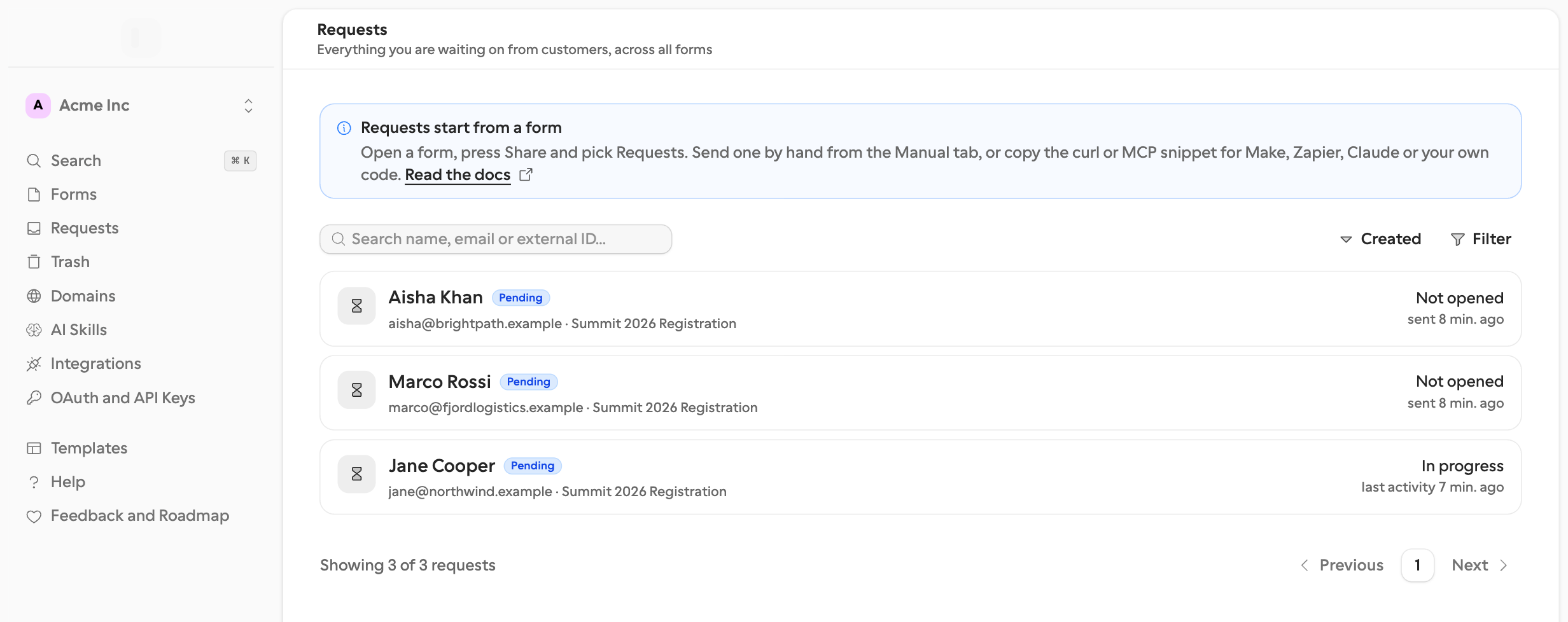
Click Requests in the sidebar, between Forms and Trash. Each card is one request: the recipient, the form it belongs to, its status, and — for a pending one — where it has got to.
| You see | It means |
|---|---|
| Not opened | The link has never been opened. The detail line shows reminders sent, or how soon it expires. |
| Opened | They opened the link but have not answered anything yet. |
| In progress | They have started answering. The detail line shows how many questions are answered. |
| Completed / Expired / Canceled | Terminal, with the date it ended. |
| Callback failed | A red badge: the request ended but your receiver never accepted the callback. |
| Test | A grey badge: created in test mode — nothing was emailed and its submission counts nowhere. |
Sort by Created, Last activity, or Name — click the field again to flip the direction. Search matches the recipient name, the recipient email address, and the external id. Filter by status (Pending, Completed, Expired, Canceled), by outcome (Approved, Declined, Changes requested), by form, or by Callback failed when you are hunting for deliveries to replay. Test requests are hidden until you tick Show test requests in the same filter.
Two shortcuts land you here pre-filtered: Open Requests on the Share sheet’s Requests card, and the “pending requests” link above a form’s submissions list.
One request in detail
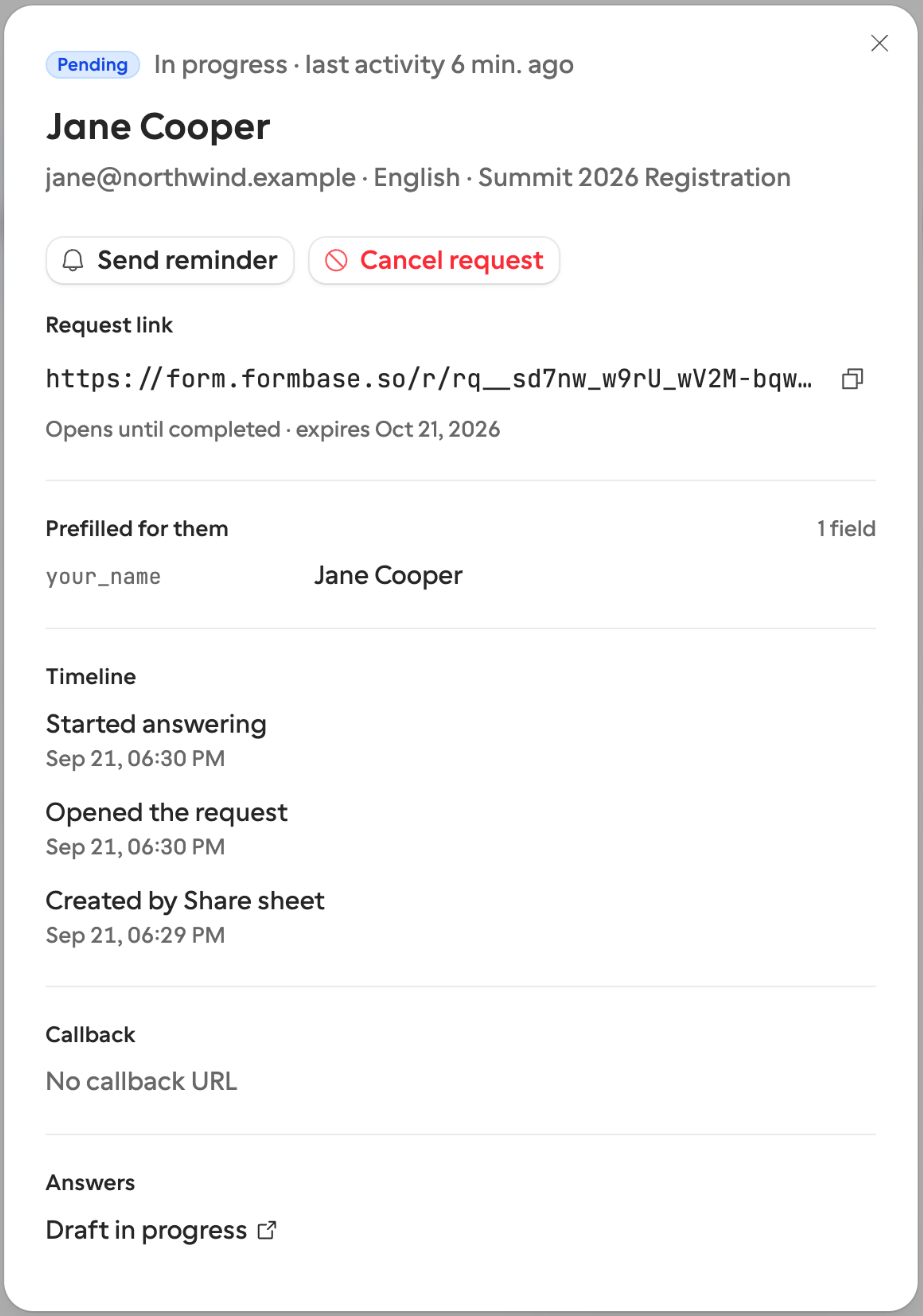
Click a card to open the drawer. Its address bar keeps the request id, so you can share the link with a colleague or bookmark it.
What the drawer shows
Request link — the URL, with a copy button. The caption says how long it stays open, or, once terminal, that it now shows the outcome page instead of the form.
Prefilled for them — every value the automation supplied, by field key, with a lock icon on the ones the recipient could not change and a context marker on the hidden-field values. This is the fastest way to answer “what did we actually send them?”. If the form’s retention window has passed since the request ended, this section says the data was removed instead.
Timeline — newest first: every callback attempt, completed or expired or canceled, started, opened, reminders, invitation queued or delivered or failed, and created at the bottom. Entries that failed are shown in red, and repeated attempts are counted.
Callback — the URL your automation gave us and how the delivery went. A delivery that used up its attempts shows a red Callback failed after N attempts alert with the Replay button beside it.
Answers — View submission once they have completed, and Draft in progress while they are still filling it in.
Where the timeline comes from
It is derived from the request’s own timestamps plus its delivery attempts. Delivery rows are cleaned up after 30 days, so an old request’s timeline thins back to the milestones — created, opened, completed — while the email and callback lines drop away.
What you can do
| Action | When it appears | What happens |
|---|---|---|
| Send reminder | Pending requests. Pro or Business; on Free the button is disabled with a PRO badge. | Emails the recipient now, without touching the schedule. |
| Cancel request | Pending requests. Any member. | Withdraws it after a confirmation. The link stops working and a canceled callback fires. |
| Replay | A terminal request that has had a callback attempt. Any member. | Re-sends the same payload with the same event id, and clears the Callback failed badge. |
| Copy request link | Whenever the link is available. | Copies the URL so you can deliver it another way. |
Cancel, replay, and copy link work on every plan. Cancelling asks first; after it, the recipient sees a withdrawn notice instead of the form. Everything else acts immediately and confirms with a toast.
Sending yourself a test
Try it yourself on the Share sheet’s Requests card creates a request in test mode from the Manual tab’s draft and shows you its link. Nothing is emailed: open the link yourself to walk through the form as the recipient would. The request shows in this list, with a Test badge, once you tick Show test requests.