Requests
Requests overview
A request is one assignment of a published form to one person. Your automation creates it, formbase hands back a secret link, the recipient fills in a prefilled form, and formbase calls your workflow back so the run continues.
What a request is
A form is a reusable design. A request is one assignment of that design to one named person — with their data already filled in, their case number attached, and a callback waiting for the moment they finish.
You do not build a different form for this. Any published form can be sent as a request. Nothing about the form changes; what changes is who opens it and what your automation knows when they are done.
| Share link | Request | |
|---|---|---|
| Who opens it | Anyone with the link | One specific person |
| How many times | Any number of respondents | One completion |
| Starting values | Whatever the form is authored with | Prefilled per recipient, some fields locked |
| Who creates it | You, in the Share sheet | An automation, an agent, the API — or you, in the Share sheet |
| When it ends | When you close or unpublish the form | On completion, expiry, or cancellation |
| What you get back | A submission in the inbox | A submission, plus a signed callback to your workflow |
Two channels, one form
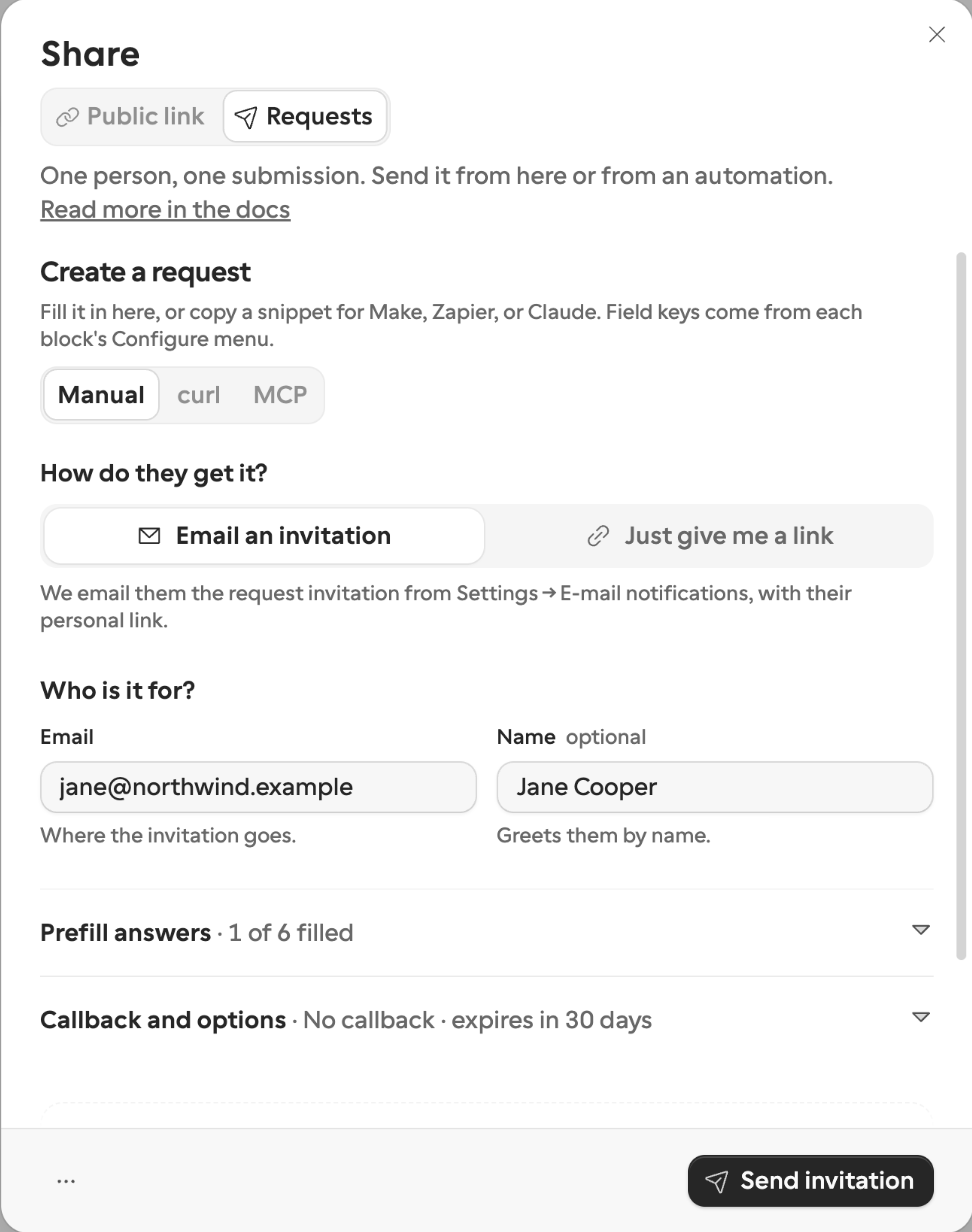
In the Share sheet, a published form has two tabs — Public link and Requests. These are the two channels a form reaches people through, and a form can use both at once. The public link goes on your website; requests go to the three suppliers you are chasing this week. Same form, same submission inbox.
Three ways to create a request
Open a published form, press Share, and pick the Requests channel. The Manual tab creates one request by hand — fill in the recipient, prefill what you know, and press Send invitation or Create link. The curl and MCP tabs hand you a ready-made snippet for the same thing from Make, Zapier, Claude, or a direct API call.
A request made by hand behaves exactly like one an automation created: same lifecycle, same reminders, same signed callback. Try it yourself creates a test request addressed to you and hands you its link — nothing is emailed — so you can walk the whole flow through before you wire anything up.
Step by step in Zapier and n8n
The Zapier guides walk through it click by click: send a request from a Zap, act on its outcome, and look it up, remind or cancel it. The same three jobs have guides for self-hosted n8n.
The lifecycle
Your automation calls
requests.createwith a form id, the recipient, and any values you already know.formbase returns a request link — a secret URL like
https://form.formbase.so/r/rq_…. It opens as many times as the recipient needs, from any device.The recipient gets the link, either through the request invitation email formbase sends, or through your own channel if you would rather send it yourself.
They open a normal formbase form: your branding, your theme, your language — with their values already in place and the fields you locked shown read-only.
They submit. The answers land in the form’s inbox like any other submission, and formbase POSTs a signed callback to the URL your automation gave it, with the answers keyed by field key.
If they never finish, reminders chase them on a schedule, and the request eventually expires. Either way your automation is told — the callback fires on expiry and cancellation too, so a workflow run is never left hanging.
Statuses
| Status | Meaning |
|---|---|
| Pending | Open and waiting for the recipient, whether or not they have opened it yet. |
| Completed | They submitted. Final — a request is not editable afterwards. |
| Expired | The expiry passed while the request was still pending. |
| Canceled | You or your automation withdrew it while it was pending. |
Completed, expired, and canceled are terminal: the link keeps working but shows an outcome page — a receipt, or a plain “this request has expired” notice — instead of the form.
While a request is pending, formbase also records when it was first opened, when the first answer was saved, and the last activity. That is what the Requests page means by “not opened”, “opened”, and “in progress” — activity, not extra statuses.
What you need
A published form. Field keys freeze at first publish, and a request pins the version that was live when it was created.
An API token, or the MCP server connected to your agent. Requests made by hand in the Share sheet need neither.
A Pro or Business plan if you want formbase to email the invitation or send reminders. Creating requests, prefilling them, locking fields, and receiving callbacks work on every plan — you deliver the link yourself. A Free account can have formbase email its first 10 invitations to try it.
Room in this month’s allowance. Requests and share-link submissions spend the same pool, and a request costs its unit the moment it is created.