Guides · n8n use cases
Read a PDF with AI and have the sender confirm it
AI reads documents fast and gets a digit wrong now and then. Here a supplier's invoice goes through an AI model, the supplier gets a form prefilled with what it read, confirms or corrects it, and the workflow carries on with verified data and a list of what was corrected.
Last checked
The pattern fits any document someone sends you: an order, a claim, an application, a contract to check. Checked on self-hosted n8n 2.44 with version 0.13.0 of the node.
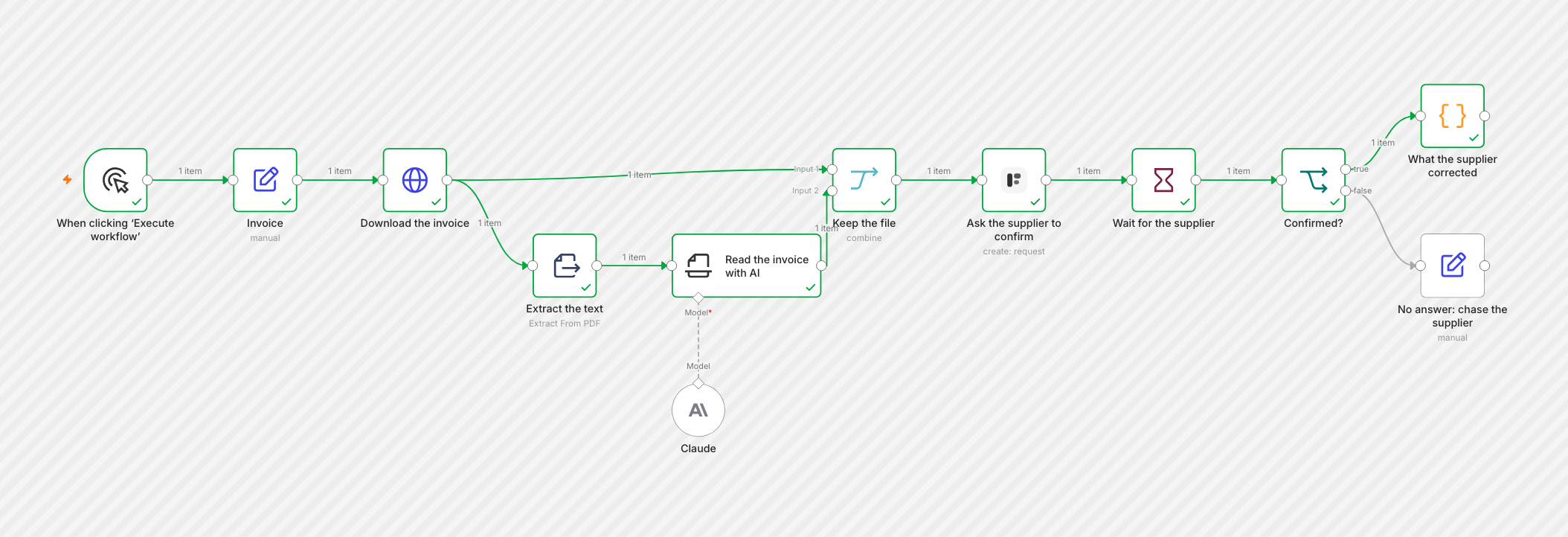
Import it from
formstep-invoice-ai-confirm.json
with Import from File. The example pins a sample result on the AI node, so it runs before you add a model; unpin it once your model is connected.
Before you start
The Formstep node on an n8n with a public HTTPS address, and a Formstep credential.
- A credential for a chat model in n8n: Anthropic, OpenAI, Google Gemini or any other the AI nodes take.
A form for the confirmation. In Formstep, open Templates, pick Confirm Invoice Details, click Use template and publish it. Its field keys are
supplier_name,invoice_number,invoice_date,due_date,total_amount,confirmedandnotes, and it has a Documents block for the invoice.
1. Get the PDF
The example downloads a sample invoice with an HTTP Request node, Response Format File, and takes the supplier’s address from an Edit Fields node named Invoice. In your workflow it is usually a Gmail or Outlook trigger on the invoices inbox, with the attachment in a binary field and the sender as the recipient, or a new file in a Google Drive folder.
2. Extract the text
Add an Extract from File node with Operation Extract From PDF. It reads the PDF’s text
into {{ $json.text }}.
Scanned documents
Extract From PDF reads the text a PDF carries. A scan or a photo has none. For those, use a model node that reads images or PDFs itself instead of these two steps; the rest of the guide stays the same.
3. Read it with AI
Add an Information Extractor node, connect your chat model to it, and set Text to
{{ $json.text }}. Under Attributes, add one attribute per value you want, named after the field key it
fills:
| Name | Type | Description |
|---|---|---|
| supplier_name | String | The company that issued the invoice |
| invoice_number | String | The invoice number, as printed |
| invoice_date | Date | The invoice date, as YYYY-MM-DD |
| due_date | Date | The payment due date, as YYYY-MM-DD |
| total_amount | Number | The total to pay, including VAT, as a number without currency |
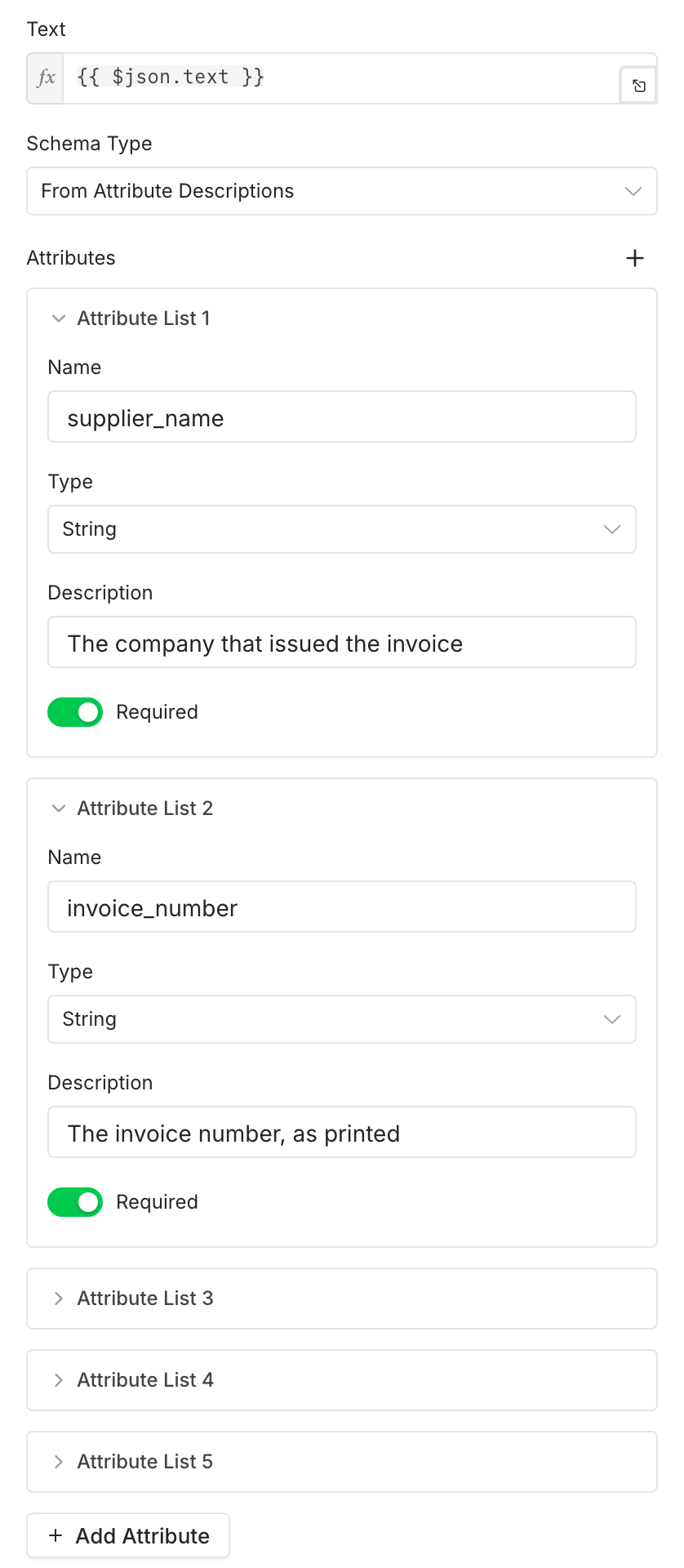
The node returns what it read under {{ $json.output }}, as {{ $json.output.total_amount }}. Naming the
attributes after the field keys keeps the mapping in the next step one to one.
4. Put the file back
The Information Extractor returns what it read, not the PDF. To attach the invoice to the request, add a Merge node with
Mode Combine and Combine By Position. Connect the HTTP Request node to
input 1 and the Information Extractor to input 2. Each item then has the file in data and the reading in output.
5. Ask the supplier to confirm
Add a Formstep Create request node and pick the Confirm Invoice Details form. Set Recipient Email to the
supplier’s address, map each field under Values to Send to its value, like
{{ $json.output.invoice_number }}, and add a document from the binary field data, named
Invoice {{ $json.output.invoice_number }}. Turn on Wait for the Outcome and add a Wait
node after it, Resume On Webhook Call.
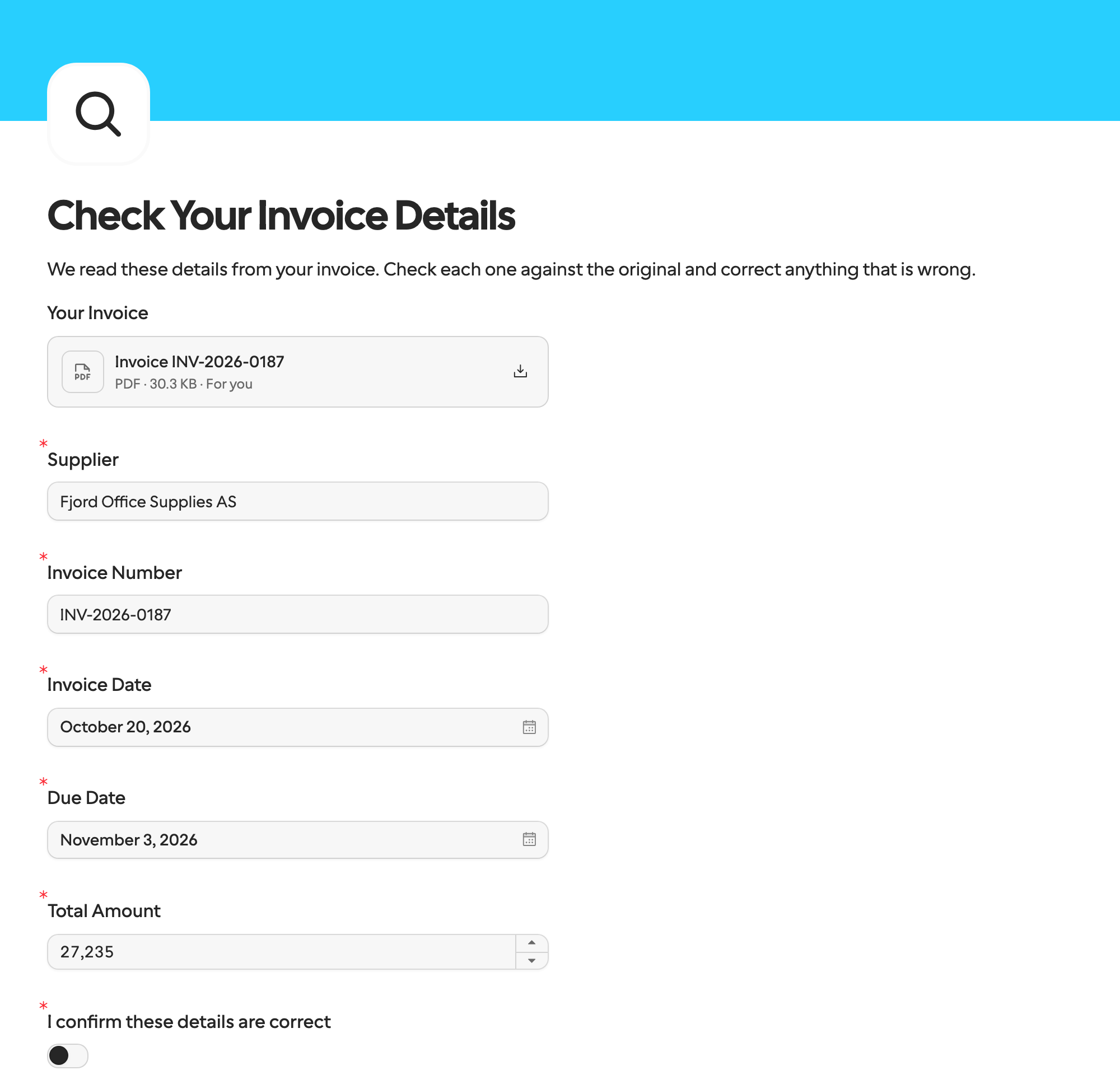
Dates and the amount arrive in their own inputs: the date fields take 2026-10-20, the amount a number. The supplier sees
every value filled in, with the invoice above them, and fixes what is wrong:
6. See what was corrected
Add an If node that checks {{ $json.body.type }} is request.completed, and on its true
output a Code node that compares the AI’s reading with the confirmed answers:
// Compare what the AI read with what the supplier confirmed.
const read = $('Read the invoice with AI').item.json.output
const confirmed = $json.body.data.answers
const corrected = Object.keys(read).filter((key) => String(read[key]) !== String(confirmed[key]))
return { json: { invoice: confirmed, corrected, notes: confirmed.notes ?? null } }
In the test run the model read the total as 27 235. The supplier corrected it to 27 325 and left a note, so corrected lists
total_amount:
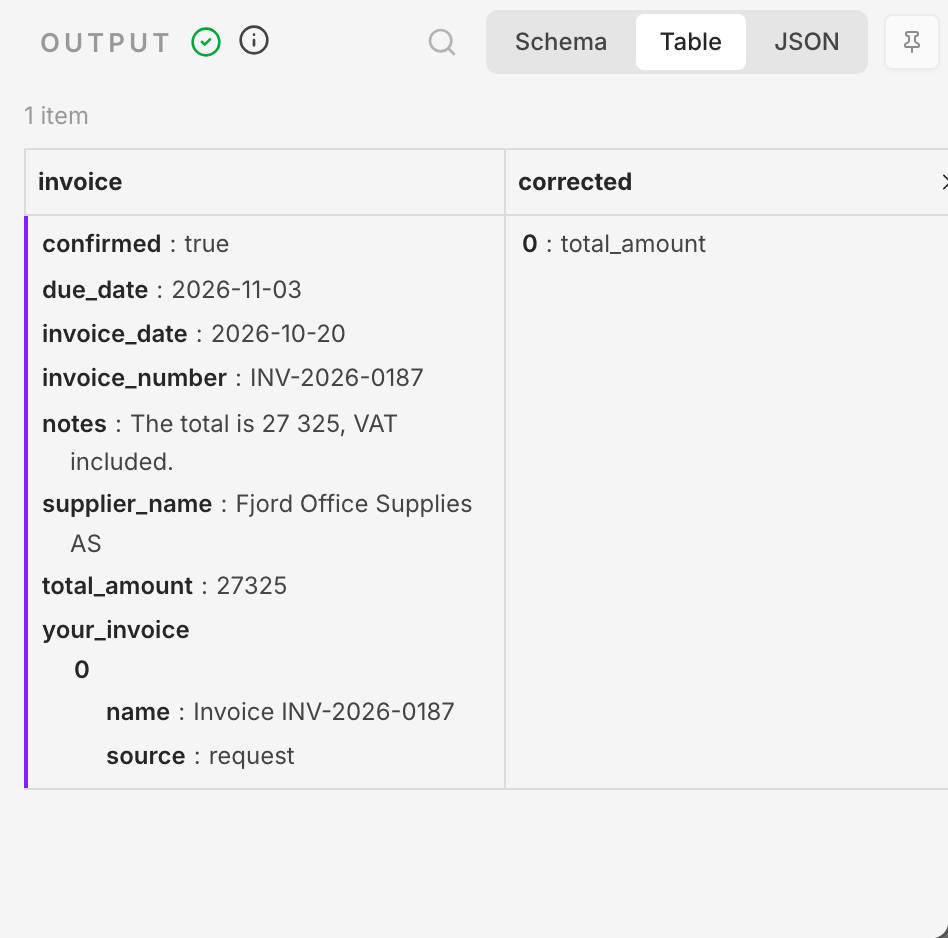
From here, book the invoice with invoice in your accounting tool, and send the ones where corrected is not empty
to a person for a second look. The false output of the If node catches a request that expired: chase the supplier there.
Variations
Check it yourself instead. Send the request to someone on your team rather than the sender, for documents nobody outside should see again.
Lock what you are sure of. Values that come from your own system, like the order number you issued, go under Read-Only Field Names or IDs, so only the AI’s reading is open to correction.
No form yet. Set Form Source to New Form and build the form from the attributes; see Collect the documents each case needs.