Pro feature
This needs the Pro plan or higher. Compare plans →
Building Forms
AI Validation
Write one sentence that says what a good answer looks like, and name the questions and files it reads. While the respondent fills in the form, Formstep checks their answers against it and shows a note when something does not fit, so they can fix it before they submit.
Pro feature
This needs the Pro plan or higher. Compare plans →
What it does
An AI Validation is a block you put in the form, right under the questions it checks. You write a rule in one sentence and name the
answers it reads with @. Once the respondent has answered them, Formstep reads those answers, and any files they uploaded,
and checks them against your rule.
The respondent sees a note under the question when something does not fit, in the language the form is shown in. They can fix the answer or submit anyway: a check warns, it never blocks a submission.
You see the result on every submission: Passed, or Flagged with a short reason written for you. Automations get the same result in the callback.
It catches the mistakes a field rule cannot: a document that is not what you asked for, two answers that contradict each other, an answer that is filled in but makes no sense.
What you can check
| What you want | A rule that checks it |
|---|---|
| The right document | @Invoice is an invoice for order @order_number, dated in 2026. |
| Names that match | The name on @Passport matches @Full name, and the passport has not expired. |
| Two answers that agree | @Work email uses the same domain as @Company website. |
| A plausible answer | @Company website is the website of a real company, not a social media profile. |
| The right kind of file | @Bank statement is a bank statement from the last three months, not a screenshot of an app. |
| Enough detail | @Damage description says what was damaged, where and when. |
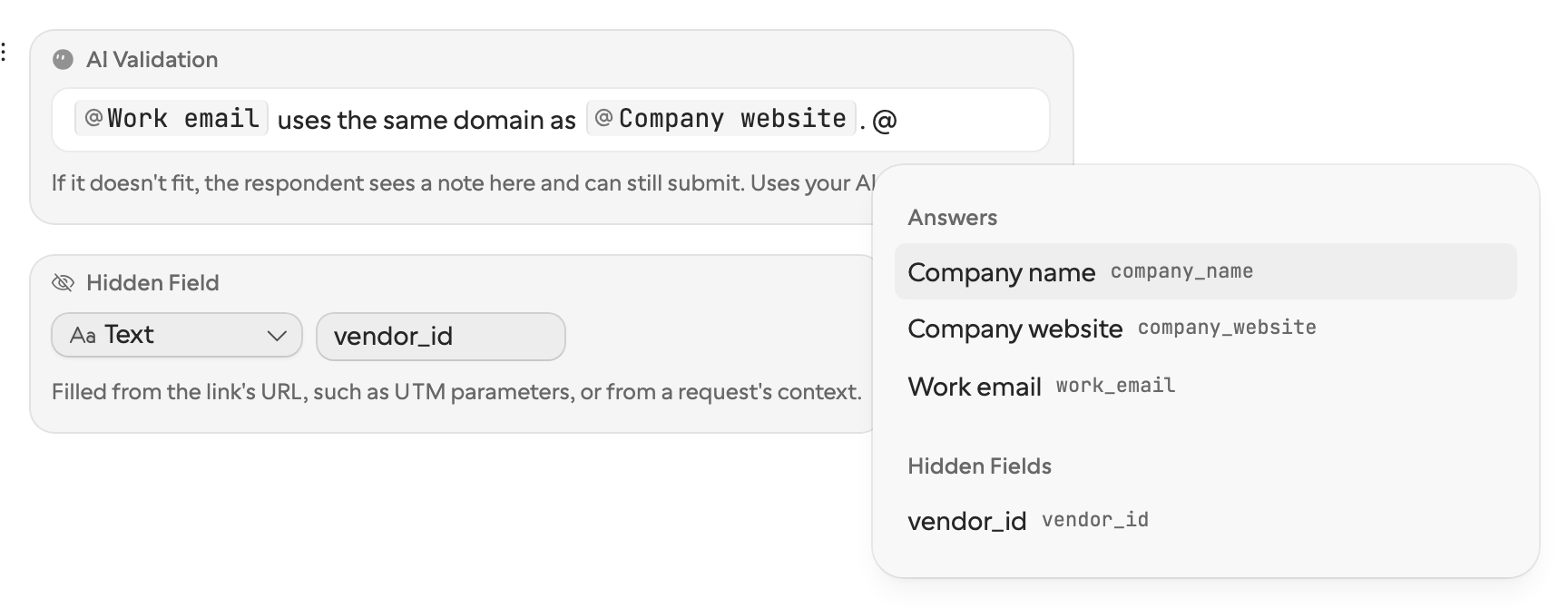
A rule can name a hidden field as the value to compare against, such as an order number or a
customer name your system already knows. In the first example, @order_number comes from the request, and the respondent never
sees it.
Adding an AI Validation
- 1
Insert the block
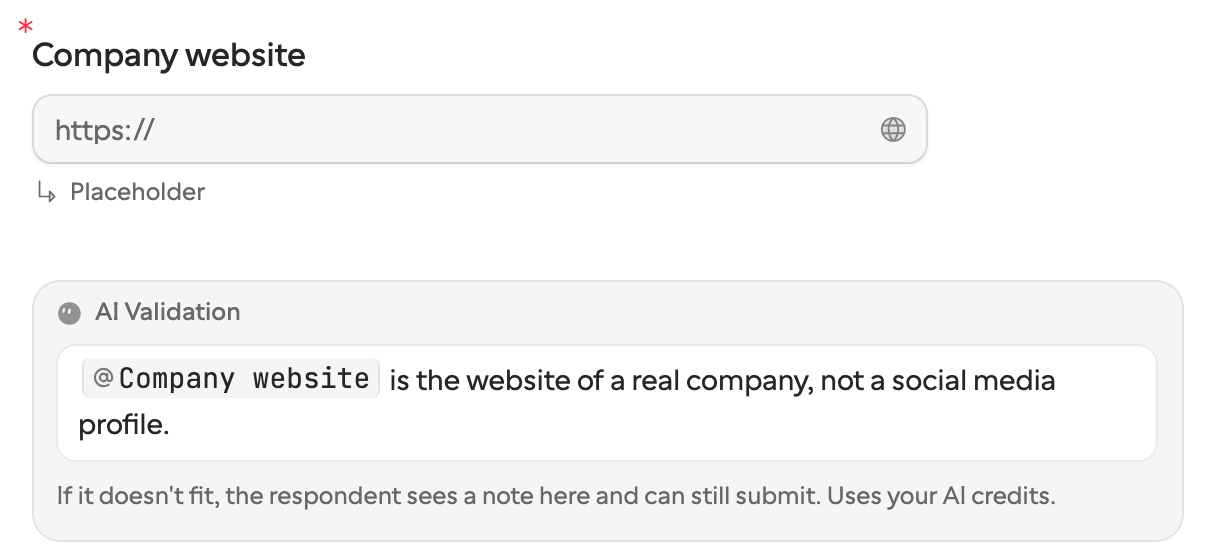
On an empty line under the question you want to check, type / and pick AI Validation, or type /ai. Placed under a question, the block starts out naming it. It sits at the top level of the form, not inside a column or a repeating group.
- 2
Write the rule
One sentence that says what a good answer looks like. Type @ to name the questions above the block and any hidden field. The check reads exactly the answers you name, and nothing else.
- 3
Try it in Preview
Open Preview and answer the way a respondent would, uploading a file if the rule reads one. Preview runs the real check, so you see the note your respondents will see.
A rule that names nothing never runs
If the sentence names no answer the check can read, with no @ or only questions below the block, the block says so: “Name a
question or file above with @, or this check never runs.”
A form built through the API can carry one too: an inline form in requests.create
takes an aiValidation block, with the answers it reads named as {{key}}.
What respondents see
The check runs once every answer it names is filled in and the respondent has moved on from it, not while they are still typing. “Checking…” shows under the question while it runs. Next and Submit wait for it for up to 8 seconds, then let the respondent go on; the note still appears when the check finishes.
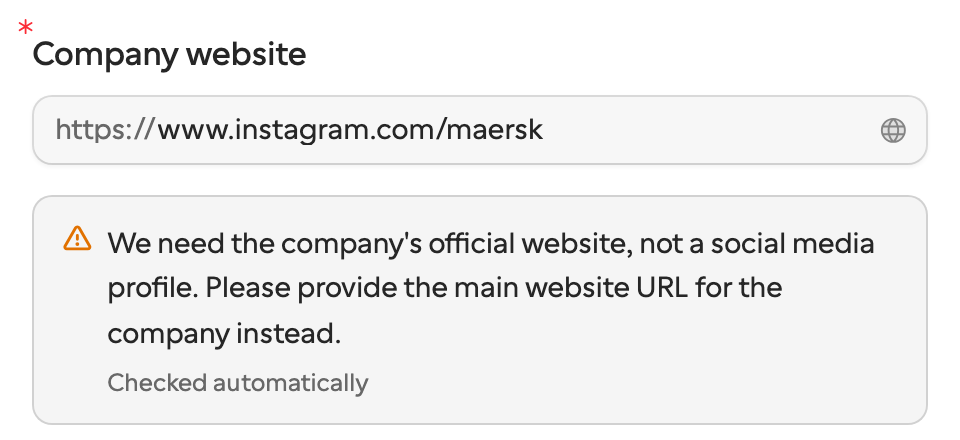
The note is written for the respondent, in the language the form is shown in. It says what is missing and how to fix it, and it never mentions AI or your rule. It never shows a hidden field’s value either: it says “the order number we have for you”, not the number.
When the answers fit, a quiet “Looks good.” shows instead.
Changing an answer checks again. The same answers are never checked, or charged for, twice: coming back to a saved draft shows the earlier result.
A check that cannot run shows nothing. Without a plan or enough credits, or when the check fails, the respondent carries on as if there were no check.
Results on the request and in callbacks
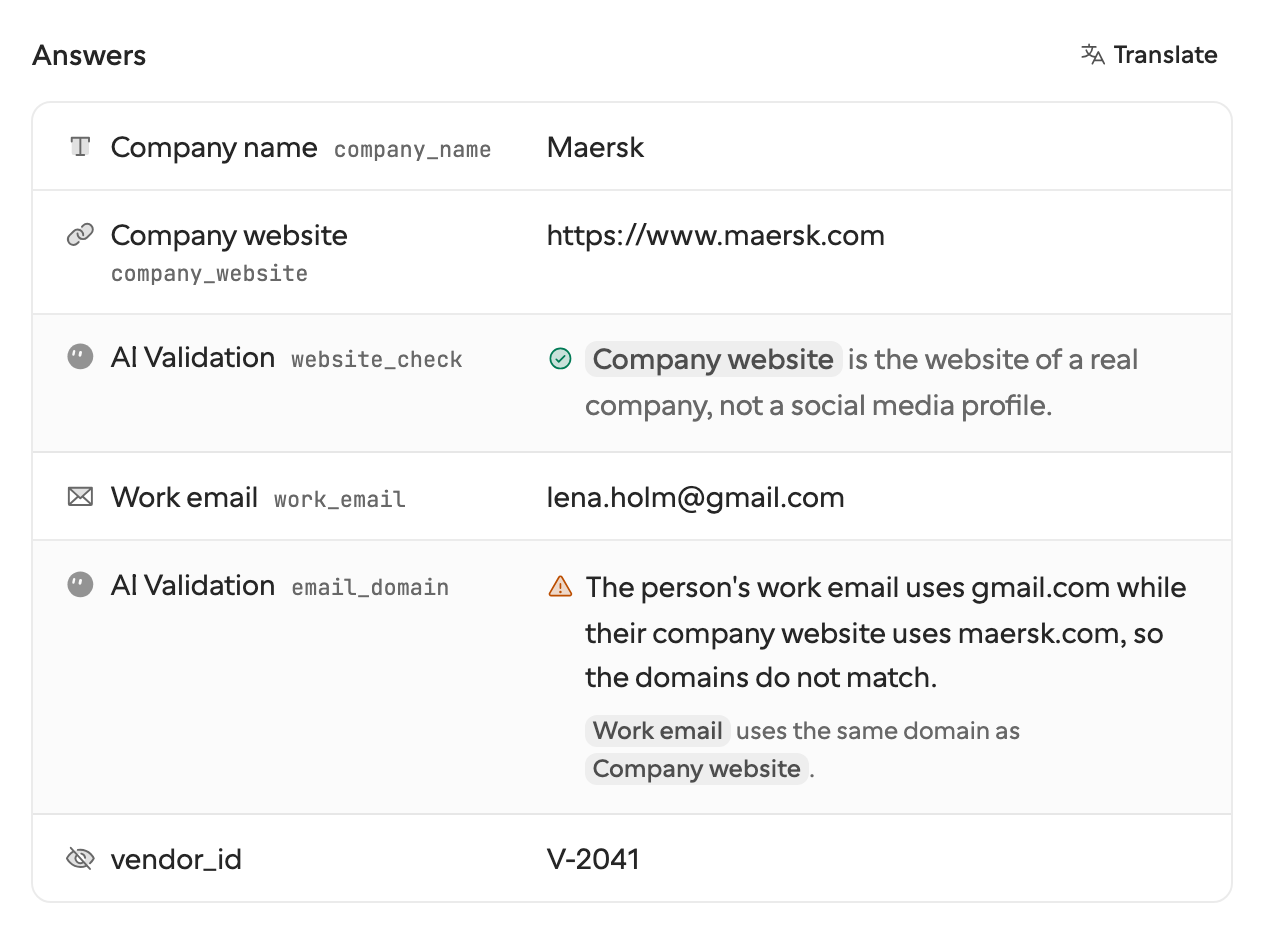
Every submission records each check as it stood on the submitted answers. On the request page, and in a submission’s details on the Submissions tab, each check sits right after the last answer it read, with an icon for its result (hover it for the name):
| Result | What it means |
|---|---|
| Passed (green check) | The answers fit the rule. |
| Flagged (amber warning) | Something did not fit. The reason, written for you in the form’s language, says what. |
| Not checked (dashed circle) | The check did not run on these answers: no plan or credits, it was still running at submit, or an answer it names was empty. When it was the plan or the credits, a line under the rule says which. |
Callbacks, webhooks, requests.get and
the MCP formSubmission_list carry the same results under data.aiValidations, one entry per check under its key.
fields lists the answers it read by their field keys, reason is there when
the check flagged the answers, and notCheckedReason (no_plan or no_credits) when your plan or your
AI credits kept it from running.
{
  "answers": {
    "company_name": "Maersk",
    "company_website": "https://www.maersk.com",
    "work_email": "lena.holm@gmail.com"
  },
  "aiValidations": {
    "website_check": { "status": "passed", "fields": ["company_website"] },
    "email_domain": {
      "status": "flagged",
      "reason": "The work email uses gmail.com, not the company's domain maersk.com.",
      "fields": ["work_email", "company_website"]
    }
  }
}
An automation can branch on status: send flagged submissions to a person to review, or send the recipient a new request for
the missing document.
Each check has a key, ai_validation, ai_validation_2 and so on. Give it a name your automation can read, such as
email_domain, in the Keys sheet, where AI Validations have a section of their own. A
key must be unique among the form’s checks.
Writing a good rule
One idea per check. To check two things, add two blocks. Each gets its own note, its own result and its own key.
Say concretely what fits. Names, numbers, dates and document types: “dated in 2026” checks better than “recent”.
Name every answer the rule needs. The check reads only the answers you name with
@.Write in any language. The respondent’s note follows the language the form is shown in, whatever language you write the rule in.
Files it can read
A check reads PDF, Word, Excel, CSV, plain text, Markdown and HTML documents, and JPEG, PNG, GIF and WebP images: up to five files per check, each up to 4.5 MB. When a file cannot be read (another type, too large, or damaged), the note asks the respondent for a clearer photo or the original file.
Plans and AI credits
AI Validation is on the Pro and Business plans. On Free you can add the block, but checks do not run. Each check uses the workspace owner’s AI credits, including the checks any member runs in Preview, whether or not the owner shares credits with members.
| A check that reads | Credits it uses |
|---|---|
| Text answers | Under 1 |
| A photo, or a one-page PDF | ~1 |
| Each further PDF page | ~0.4 |
While a check runs, the most it could cost is set aside: about 46 credits for a check that reads a PDF or Office file, a few for text and photos. The owner pays only what the check used. See credits set aside while AI works.
When credits run out
When the owner’s credits are too low for a check to start, checks stop until the owner adds credits. Respondents notice nothing and can still submit; the submission records Not checked, with “Not enough AI credits”. Checks never stop quietly. The owner is told in three places:
In the editor, each AI Validation block says checks are paused while the credits cannot cover one. The owner gets an Add credits link; a member sees the warning only.
In Preview, a check that does not run says why: no credits, no plan, or too many checks in a row.
By email, the owner hears the first time a respondent’s check is turned away for lack of credits, and at most once a week after that while checks keep stopping.
What is sent, and what is kept
A check sends your rule, the answers it names and the files it reads to the AI model, and nothing else from the form. The model only ever returns a result and a note. It cannot act on anything written in an answer or a file, so the worst a planted instruction can do is change a check’s result, which you see on the submission.
The result is stored with the submission. The note a respondent saw is kept with their link for up to 30 days, so the same answers are not checked again, and is deleted with the submission, the request or the form.