Guides · n8n use cases
Get a manager's approval in n8n
An employee claims an expense. The workflow sends the manager a request with the claim and the receipt, waits for the decision, and tells the employee, or escalates when nobody answers in three days.
Last checked
The same workflow approves anything one person must sign off: a discount for a deal, a purchase order, a holiday, a contract change. Swap the expense for your own data; the steps stay the same. Checked on self-hosted n8n 2.44 with version 0.13.0 of the node.
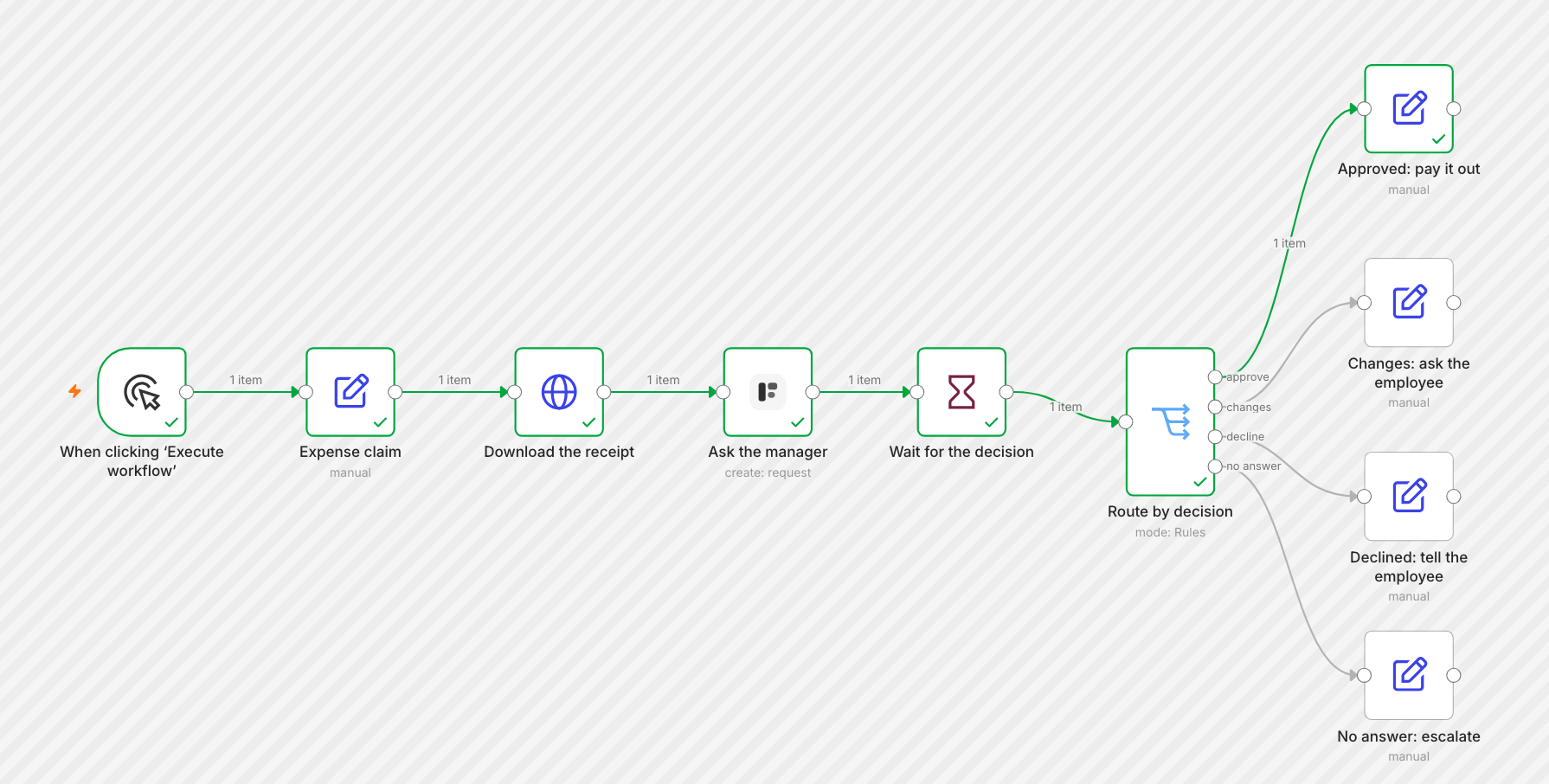
Import the whole workflow from
formstep-expense-approval.json
(Workflows › Import from File), then pick your credential and your form in Ask the manager.
Before you start
The Formstep node on an n8n with a public HTTPS address, and a Formstep credential. See Install the Formstep node in n8n.
Pro or Business to email the request to the manager. On Free, leave Delivery at None and send the request’s link yourself.
1. Build the approval form
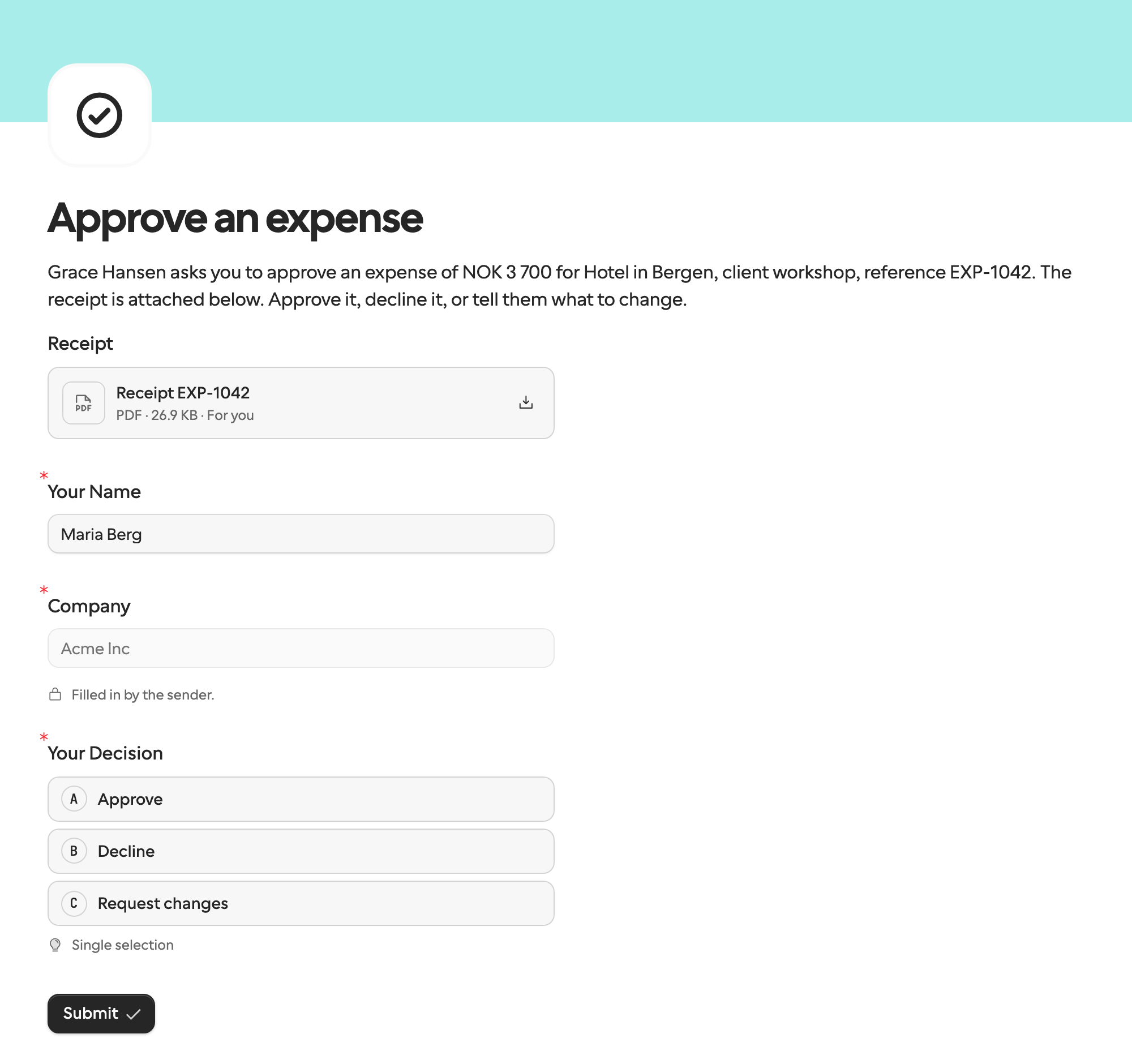
In Formstep, open Templates, pick Approval and click Use template. The template has a Decision question with Approve, Decline and Request changes, a text box that shows when the manager asks for changes, and a signature that shows when they approve. Then make it about the expense:
Add hidden fields for what the manager must see but never edit:
reference(the template has it),employee_name,amountanddescription.Write them into the text with @, for example @employee_name asks you to approve an expense of @amount for @description, reference @reference.
Add a Documents block named Receipt. The workflow attaches the receipt there for this manager only.
Publish the form. This is what the manager opens:
2. Bring in the expense and its receipt
The example starts with an Edit Fields node named Expense claim that holds the claim: expenseId,
employeeName, employeeEmail, managerName, managerEmail, amount,
description and receiptUrl. In your workflow, the claim comes from where it starts: a webhook from your expense
tool, a new row in a sheet, a Formstep public link form the employee fills in.
An HTTP Request node named Download the receipt fetches {{ $json.receiptUrl }} with
Response Format set to File. The file lands in the binary field data. If the receipt
arrives as an email attachment or a Google Drive file, use that node instead; anything that puts the file in a binary field works.
3. Ask the manager
Add a Formstep node, pick Create request and choose the approval form. Read the claim from the Expense claim
node, as {{ $('Expense claim').item.json.managerEmail }}: after the Wait node, $json is Formstep’s event,
and the same expression still finds the claim.
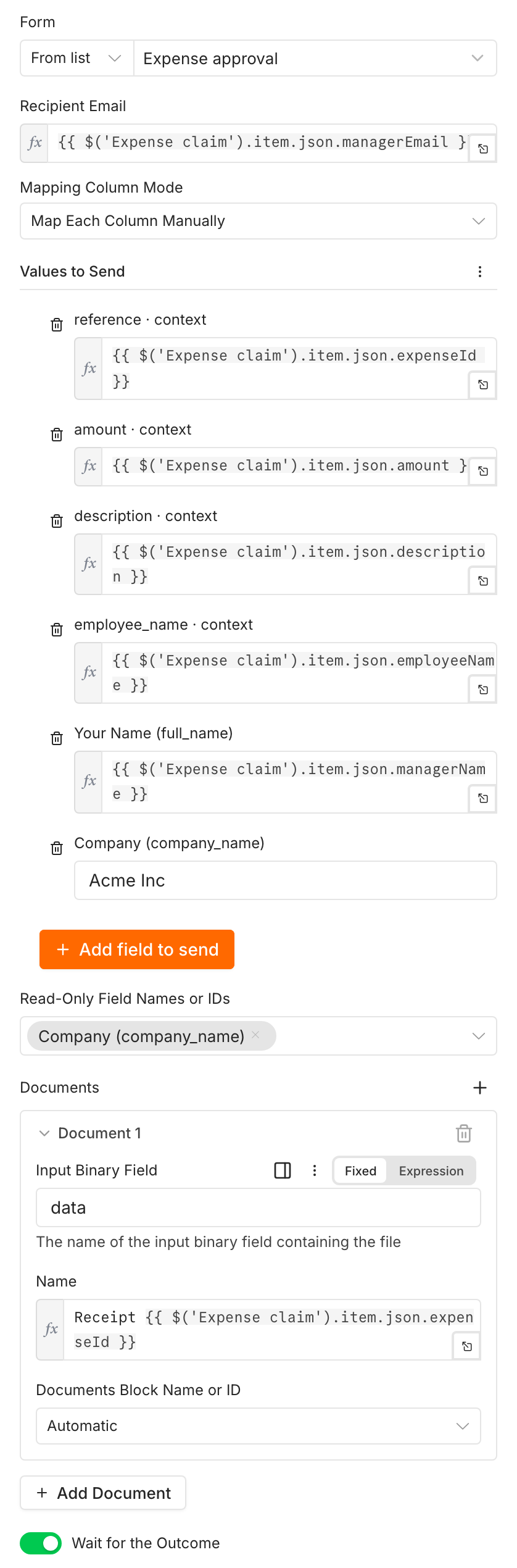
Values to Send lists the hidden fields marked · context: the manager sees them in the text and cannot change them. Your Name and Company are prefilled, and Read-Only Field Names or IDs locks the company. See Prefill, locked fields, and context.
Under Documents, the document takes the binary field
data. Automatic puts it in the form’s only Documents block; pick a block when the form has several.Turn on Wait for the Outcome. Formstep then calls this execution back when the manager answers.
Under Additional Fields:
Delivery Email the Invitation emails the manager the link. The request’s reminders follow the form’s schedule.
Expires At
{{ $now.plus({ days: 3 }).toISO() }}ends the wait after three days.External ID
{{ $('Expense claim').item.json.expenseId }}-{{ $execution.id }}ties the request to the claim. The execution ID keeps it unique: every execution has its own resume URL.Test Mode, on in the example, sends nothing and keeps the request out of your lists. Turn it off when the workflow goes live.
4. Wait and route the decision
Add a Wait node with Resume set to On Webhook Call. Then add a Switch
node with three routing rules, each comparing {{ $json.body.data.request.outcome }} with approve,
changes or decline, and each with Rename Output on. Under Options, set
Fallback Output to Extra Output and name it no answer: an expired or canceled request has no
outcome and goes there.
Each branch reads what it needs from the event and the claim:
Who decided:        {{ $json.body.data.answers.full_name }}
What should change: {{ $json.body.data.answers.requested_changes }}
Why it ended:       {{ $json.body.type }}   (request.completed, request.expired or request.canceled)
The claim:          {{ $('Expense claim').item.json.expenseId }}
The example ends each branch in an Edit Fields node that writes the message. Put the node that sends it in its place: Gmail or Slack to the employee, your accounting tool for the payout, a second request to finance for no answer.
5. Run it
Click Execute workflow. The execution stops at the Wait node. Open the request’s url from the output of
Ask the manager, decide, and submit: the execution resumes down the matching branch, as in the picture at the top. With Test Mode
on, the callback still resumes the workflow; only the email stays unsent.
Two people, two steps
Chain two of these for a two-step approval: when the manager approves, a second Create request node sends the same claim to finance, with the manager’s name as context, and waits again. Each step keeps its own decision.