Guides · n8n use cases
Let an AI agent send requests from n8n
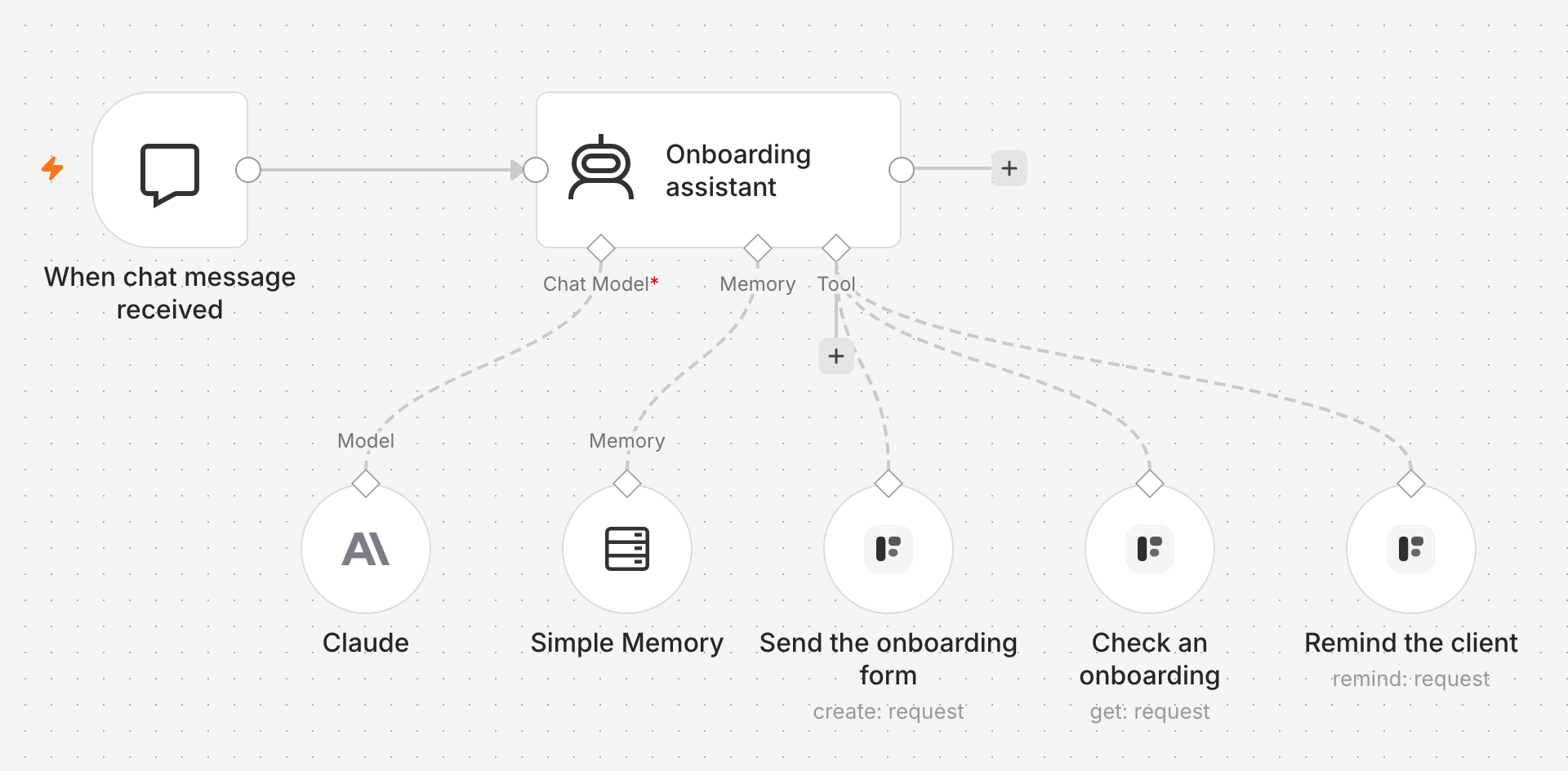
An onboarding assistant your team chats with. Asked to onboard a client, it sends them the onboarding form with what it knows filled in; asked how it is going, it checks the request and reads the answers back.
Last checked
The agent decides when to ask a customer and what to fill in; Formstep collects the answers and checks them against the form. Checked on self-hosted n8n 2.44 with version 0.13.0 of the node, by running each tool from n8n’s tool test. The conversation itself depends on the model you connect.
Import it from
formstep-ai-agent-onboarding.json
with Import from File, then pick your credentials and your form.
Before you start
The Formstep node and a Formstep credential. On self-hosted n8n, start n8n with
N8N_COMMUNITY_PACKAGES_ALLOW_TOOL_USAGE=true; without it, community nodes do not show up as tools.- A credential for a chat model in n8n.
A form. In Formstep, open Templates, pick Client Onboarding, click Use template and publish it. It asks the client to check their details and sign, and has a hidden field
customer_id.
1. Set up the agent
Add a When chat message received trigger and an AI Agent node. Connect your chat model and a Simple Memory, so the agent remembers the request it sent earlier in the chat. Under Options › System Message, tell it what it is for and where to stop:
You help the Acme Inc team onboard new clients.
To onboard a client, send them the onboarding form with what you already know: their name, email, company and customer number. Ask the team member for anything missing first, and never invent an email address.
After sending, give the team member the link and the request id.
When asked how an onboarding is going, check the request. A completed request has the answers the client confirmed.
Remind a client only when the team member asks you to.
2. Add a tool that sends the form
Click + under the agent’s Tool input, search for Formstep and pick Create request. Name the tool after what it does, here Send the onboarding form, and set Tool Description to Set Manually with a sentence the model reads to decide when to use it.
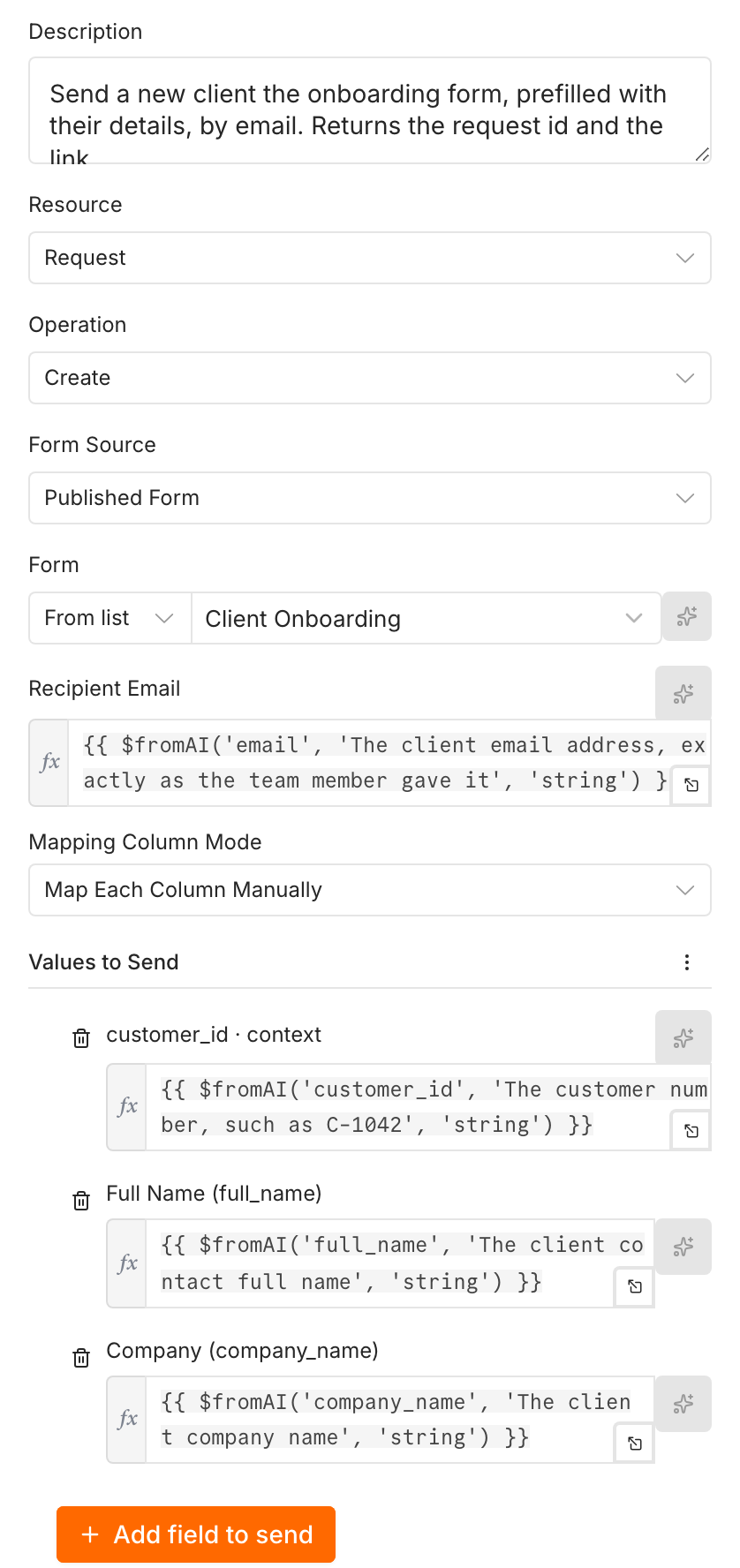
Pick the form yourself, so the agent can only send this one. For each value the agent should fill, click the ✨ button next to the
parameter, or write $fromAI() with a key and a description the model reads:
Recipient Email   {{ $fromAI('email', 'The client email address, exactly as the team member gave it', 'string') }}
customer_id       {{ $fromAI('customer_id', 'The customer number, such as C-1042', 'string') }}
Full Name         {{ $fromAI('full_name', 'The client contact full name', 'string') }}
Company {{ $fromAI('company_name', 'The client company name', 'string') }}- Use each key once per tool. Two parameters with the same key get the same value.
- Leave out what the client should type themselves, or what the agent cannot know. They fill in the rest of the form.
Under Additional Fields, Delivery Email the Invitation emails the client. Test Mode, on in the example, sends nothing while you try it out.
3. Add tools to check and remind
Add two more Formstep tools on the same input:
Check an onboarding: Get request, with Request › By ID set to
{{ $fromAI('request_id', 'The id that Send the onboarding form returned for this client', 'string') }}. Simplify, on by default, returns ten fields: the status, the outcome, the client’s email, the dates, and the answers once the client completed the form. That keeps the model’s context small.Remind the client: Remind request recipient, with the same Request. A test request is never reminded, so this tool answers with an error until Test Mode is off.
4. Test each tool without the model
Open a tool and click Execute step. n8n asks for the values the model would send, one box per $fromAI key,
then runs the tool. Send the onboarding form returns the request’s id and url; put that id
into Check an onboarding to see what the agent will read. When a value is refused, the error the agent gets names it, such as
VALIDATION_ERROR: “email” is not a valid email address, so the model can ask again.
5. Chat with it
Click Open chat and write, for example: Onboard Analytical Engines Ltd, contact Ada Lovelace, ada@example.com, customer number C-1042. The agent calls Send the onboarding form and replies with the link. Later, How is the Ada Lovelace onboarding going? makes it call Check an onboarding with the request ID it kept in memory.
Hear back without asking
The agent only knows what it checks. To act the moment a client completes the form, add a separate workflow with a Formstep Trigger on Request Completed for the same form, and post the answers to your team or your CRM from there.
- The tools reach only the workspace the credential connects, and only the forms you picked in them.
Agents outside n8n, like Claude or ChatGPT, can do the same through Formstep’s MCP server; see Send a request with an AI agent.