Building Forms
Live results
After they submit, respondents see how everyone answered. The same results open on their own page, for a screen in the room.
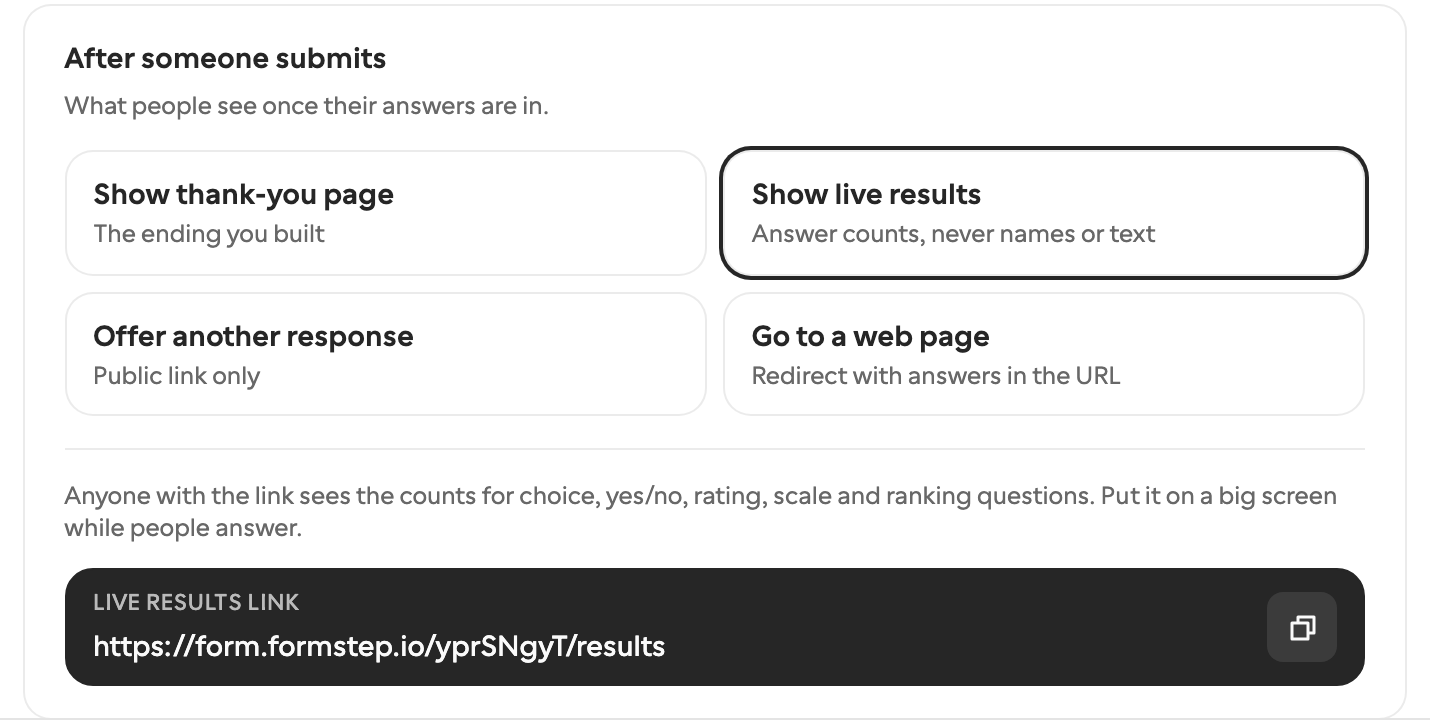
Turn it on
Open Settings, the Submissions tab. Under After someone submits, pick Show live results. Save, and the next respondent sees the results after they submit.
The Live results link under the choices is the address of the results page. Click it to copy it. Publish the form first: the link appears once the form has a public link.
What respondents see
After they submit, respondents see the thank-you page with “Showing results in 3 seconds…”, then the results. Someone who comes back to the form after submitting goes straight to the results. If the form lets people change their answers, the Edit your response button stays under the results.
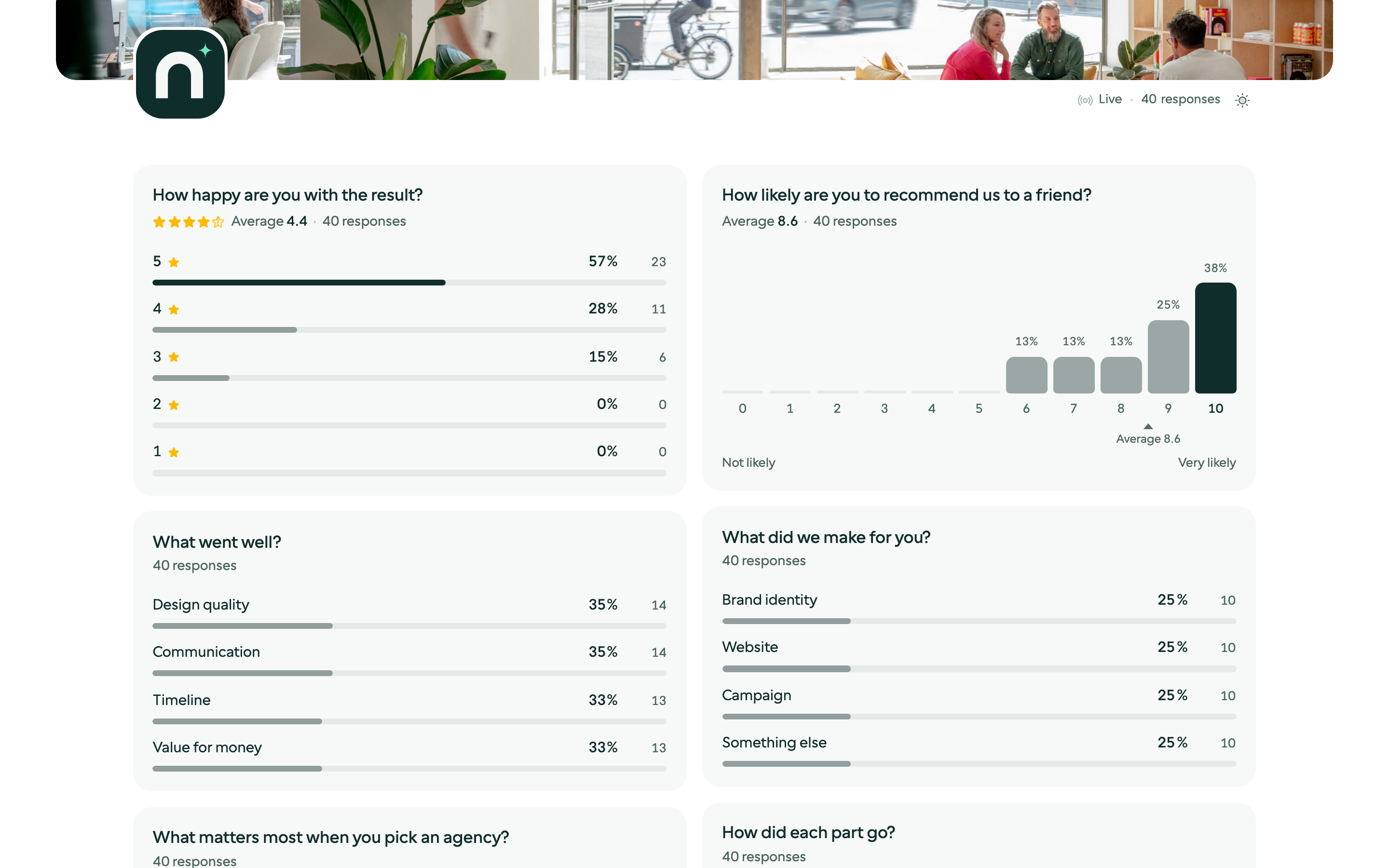
Each question gets a block with its answer count:
- Choices (single choice, multiple choice, dropdown, picture choice): a bar per option, with its share and count. The option most people picked gets the full color.
- Switch: the share of yes and no, with the counts under the bar.
- Rating: the average and the stars, then a bar per star count.
- Linear scale: the average, then a column per step with the average marked under it and your end labels.
- Ranking: options from best to worst, with the average place and the share who put each first.
- Matrix: a grid with a row per matrix row. Each cell is the share of that row’s answers, so every row adds up to 100%, and a stronger tint means more people chose it.
Text, email, phone, contact, file, signature and payment questions never appear, and no result shows a name or a written answer. Bars take your form’s button color.
The results page
Every public link has a results page: the link followed by /results, such as form.formstep.io/aB3dE9xY/results. Anyone with it sees the results without answering. Open it on a projector or a TV while people answer: new responses appear within a few seconds, and on a wide screen the results sit in two columns with larger text.
Every public link of a form opens the same results, for the whole form.
What counts
- Completed responses from the form’s public links. Answers to requests stay with the request and are not counted.
- The latest 5,000 responses. Older ones are left out, and the page says so.
- The published form: a question you add or rename shows after you publish.
Deleting a response takes it out of the results.
Privacy and access
A form behind a password keeps its results behind it: respondents who entered the password see them after they submit, and the results page does not open.
- A closed form keeps its results page. A deleted form or a revoked link takes it away.
- Switch back to another choice under After someone submits, and the results page closes.
- Questions and options show as written, in the form’s language.
One choice after submit
Show live results, Offer another response and Go to a web page are separate choices. Picking one turns the others off.